
Custom mailbox
Connect an employee to any mailbox that speaks standard email (SMTP and IMAP), such as OVH, Ionos or a local host.
Where
Dashboard sidebar → Settings → Connectors → Custom mailbox (An employee sends and receives with your own mailbox (SMTP / IMAP)). The row reads No mailbox until you add one. Enterprise and SaaS plans.
What it does
Plenty of businesses run their email on OVH, Ionos or a local host, not Gmail or Office 365. This connector links an employee to that mailbox:
- Sending goes through your provider's own server, from your address, so it is signed by your provider and lands like any other mail from your domain.
- Receiving is instant. The provider tells Geta.Team when mail arrives (IMAP IDLE), so nothing is polled and new mail reaches the employee within seconds. Mail already in the mailbox stays where it is.
- The employee's own workspace address keeps working. Mail sent to either address reaches it, and it can still choose to send from the workspace address.
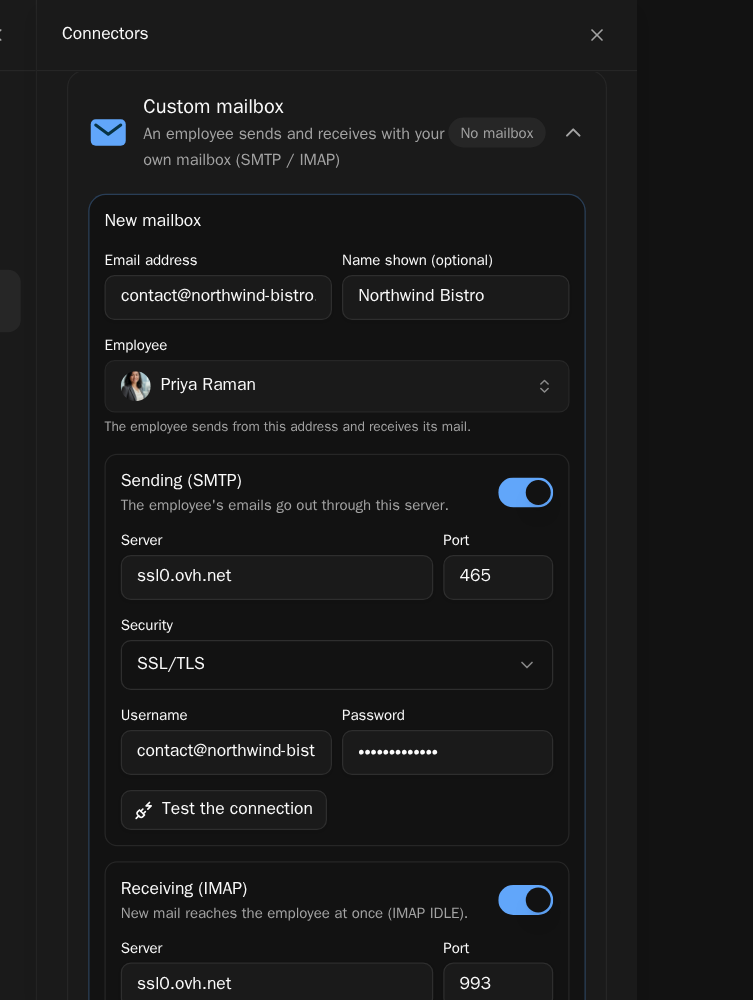
Add a mailbox, step by step
- Click Add a mailbox. The New mailbox form opens.
- Email address (for example
[email protected]) and, optionally, Name shown (e.g. ACME Support). - Employee: pick the employee. The employee sends from this address and receives its mail.
- Sending (SMTP): Server, Port, Security (SSL/TLS, STARTTLS, or None (not recommended)), Username and Password. Test the connection answers Connected, sending works.
- Receiving (IMAP): the same fields plus the Folder to watch (usually
INBOX). Test the connection answers Connected: 1,284 messages in the folder. - Save. The mailbox shows Active, with Used by and the employee's name.
Each side has its own switch: you can set up sending only or receiving only.
What breaks
- Wrong server, port or credentials. After ten failed connections in a row, the mailbox switches off and the panel says why (wrong username or password, for example). Fix the settings, then click Turn back on. Before that, the panel counts the failed attempts.
- Dropped connections reconnect by themselves, and mail that arrives during an outage is delivered once, never twice.
- Passwords are encrypted and never shown again: when you edit the mailbox, the field reads Unchanged.
- Remove asks to confirm. The address is no longer used, the employee sends from its workspace address again, and the mail already received stays.