
Chrome Extension
The browser extension that lets an employee work in your own Chrome session.
Where
Dashboard sidebar → Apps → Chrome Extension. The entry opens the Geta.Team extension on the Chrome Web Store
- it is a link out, not a screen in the product.
What it does
It lets an employee act in your browser, in your session: the pages you are already logged into, without handing over any password.
That is the difference with server-side browsing: a site behind your company SSO, an intranet, a supplier portal with two-factor authentication, an employee cannot reach those on its own, but it can through your session.
The side panel
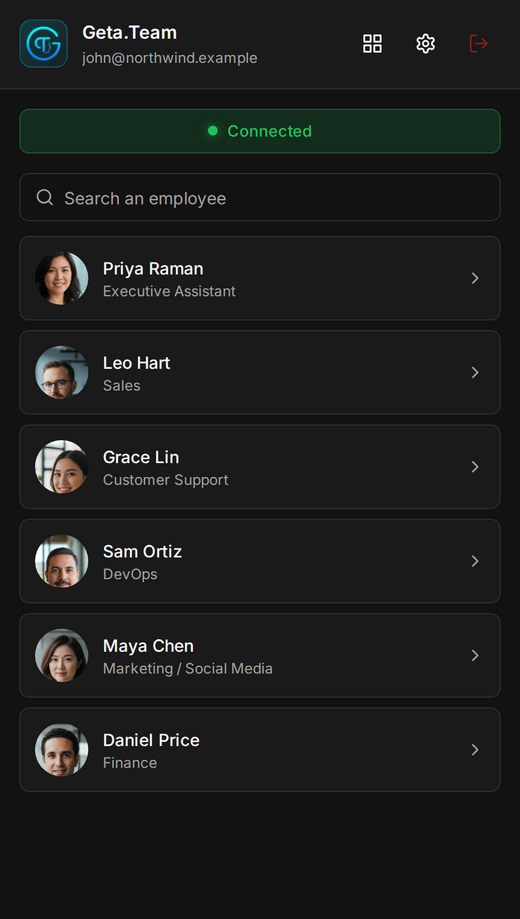
Open the extension and pick an employee: its real chat opens in Chrome's side panel, fitted to the narrow width, with the history, attachments, tool results, dictation, voice messages and calls. Every chat improvement reaches the extension without a new extension release. The panel also shows the employees' interfaces (charts, tables, forms, approvals), opens Kanban cards from their chat badge, and has a search to find an employee. On white-label instances it takes your instance's name, logo and colours.
Arc never shows a side panel: Arc users get a small window instead.
Stop it, and see what it is doing
While an employee is using your browser, a small badge on the page shows which employee it is and what it is doing, so you always know when a tab is being driven for you. To stop it at any moment, press Stop in the side panel: the employee lets go of the browser at once.
Since extension 1.4.5, Stop only ends the task running at that moment: the employee is told it was stopped and not to try again, and browser automation stays on for the next task. (Before, Stop also switched browser automation off in the extension's settings; the update turns it back on.)
Allowed sites
By default your employees may use every site in this browser. In the extension, Settings → Browser → Allowed sites (The sites your employees may open and act on in this browser.), switch from All sites to Only these sites and add what they may use:
- a site:
docs.google.com - a site and its subdomains:
*.example.com - a site and a path:
example.com/admin
The list lives in this browser, and only you can change it. Outside the list, an employee cannot open, read, click, type in or screenshot anything, and other tabs show up without their address or title. If it tries, it gets a clear error and tells you so (I don't have access to example.com: it is not in your allowed sites) instead of looking for another way in. With Only these sites and an empty list, the extension warns: No site yet: your employees cannot open any site in this browser.
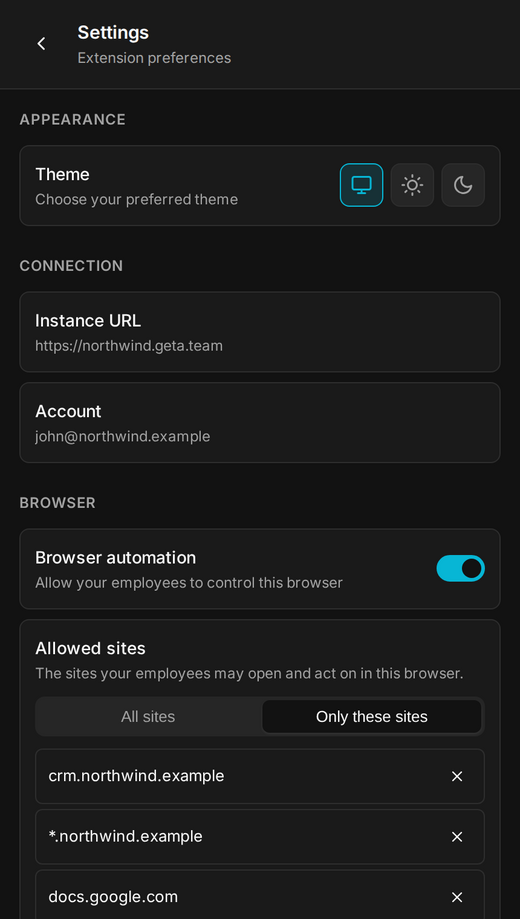
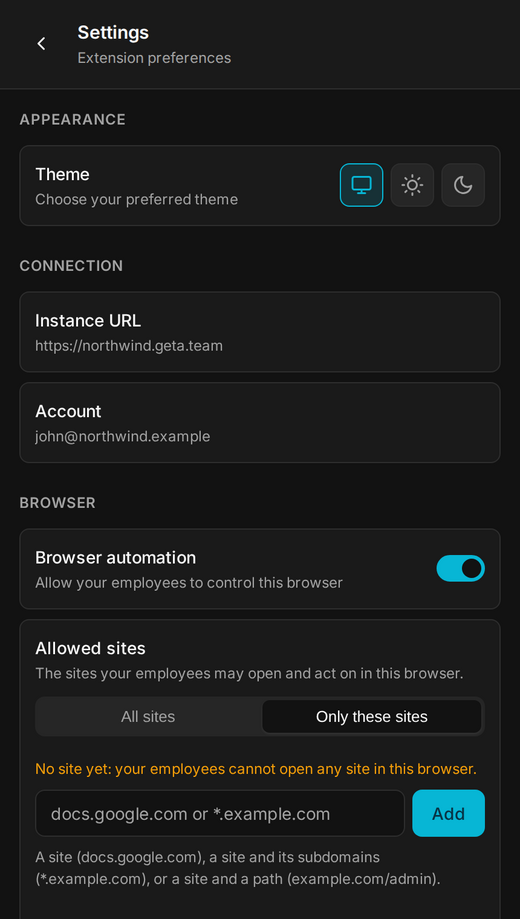
The extension's screens are in English.
Several browsers
One employee can work with several browsers, your office computer and your laptop for example. Each browser gets its own name, such as Chrome - Windows, which you can change. With one online, the employee's commands go there; with several, it names the one it wants.
Settings → Connectors → Browser extension → Your browsers lists them, whether they are online, and which employees use each one. Give two browsers with the same name a nickname (e.g. Office laptop), otherwise employees cannot target them by name.
A pairing that broke silently, after signing out of the extension or an expired sign-in, repairs itself within a couple of seconds of the extension connecting: no need to unassign and reassign. The sign-in no longer prefills an instance address, and scripts run on sites with strict security policies, such as Instagram and Reddit.
Updates
Since version 1.4.2 the extension updates by itself. As soon as Chrome has downloaded a new version from the Web Store, the extension restarts, after any action an employee may be running in the browser. It takes about a second, and the tabs already open get the new version without a reload. The only delay left is Google's review of each release.
Since version 1.4.11 the extension speaks 11 languages (it follows your account's language), and on an instance with single sign-on it shows Sign in with SSO, which opens in a normal browser tab.
The desktop counterpart
The Desktop App does the same for your whole machine rather than your browser. The extension is the narrower, safer of the two.
The default
Not installed.