
The dashboard
The employee grid: statuses, tags, channels, and the four actions on every card.
The dashboard is the home screen of a workspace, and the screen you will spend the most time on. It shows every employee you have hired as a card.
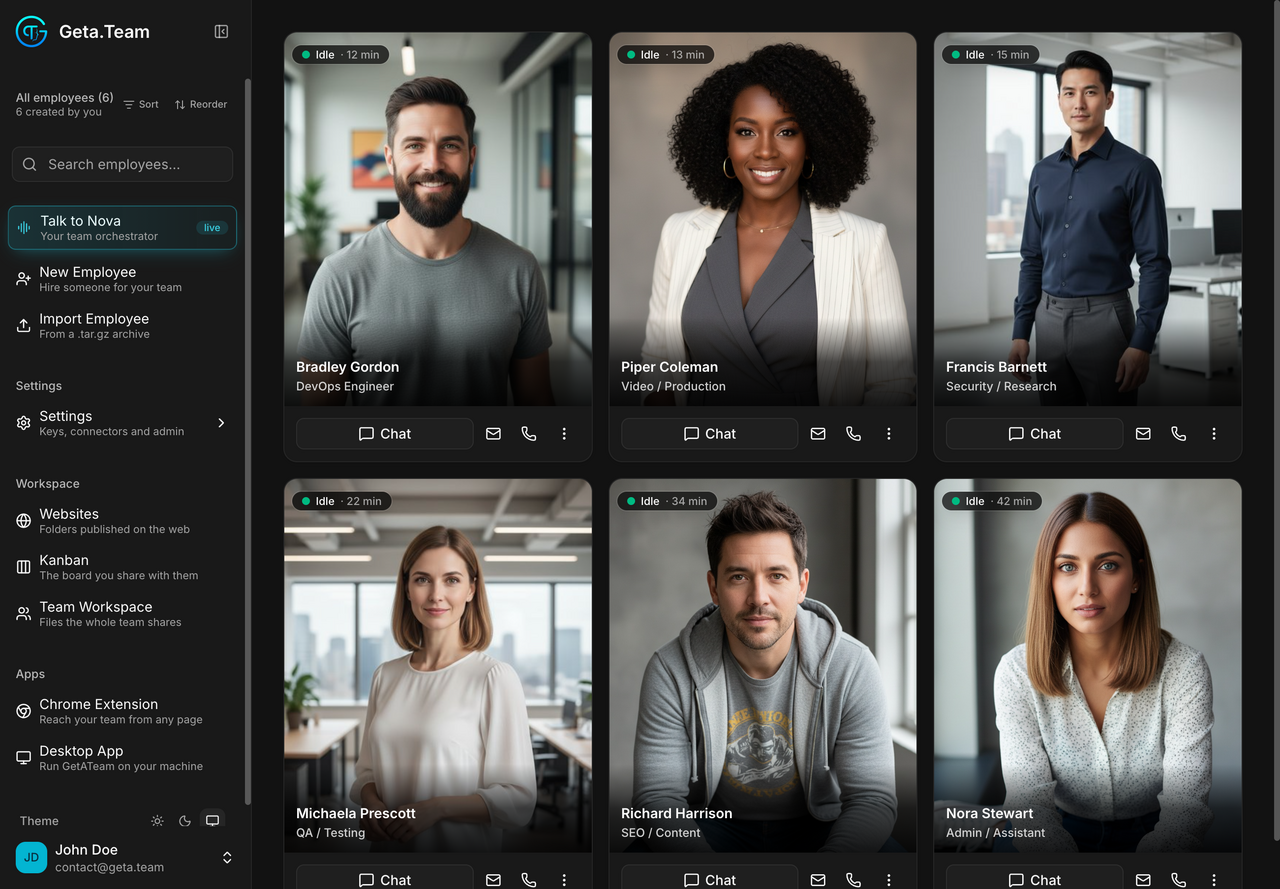
The header
- A counter at the top of the sidebar, the number of employees your plan or licence allows.
- My Team (N), how many are currently in this workspace.
- Busy first, a sort that pulls working employees to the top. Useful past ten or so employees, pointless below that.
- Search, by name.
- All Tags, a filter. It only appears once at least one employee is tagged, so a fresh workspace does not show it.
What a card tells you
Each card carries more than a portrait:
- A status and its age,
Idle · 16 hmeans idle for sixteen hours. It is the fastest way to spot an employee nobody has given work to. - A user tag next to the name, the account the employee belongs to.
- Free tags you set yourself, used by the All Tags filter.
- Channel icons in the top-right corner, one per connected channel.
A card has two faces. Normally it shows the portrait. When the employee has a recent exchange, the card shows the last prompt and the last reply instead. That preview is readable by anyone with access to the workspace, which is worth knowing before you discuss anything sensitive with an employee.
The four actions
Every card has the same four: Chat, Mail, Call, and a menu. They are shortcuts into the employee's own screens, covered in Working with an employee.