
Slack Impersonation
Let employees send Slack messages as a real connected user, rather than as a bot.
Where
Dashboard sidebar → Settings → Connectors → Slack Impersonation.
What it does
Impersonation lets an employee send messages as a real Slack user who connected their account, instead of posting under a bot identity.
This is the opposite choice from Slack Bots.
| Slack Bots | Slack Impersonation | |
|---|---|---|
| Messages appear as | the app, with its own name and avatar | the connected human user |
| Set up per | employee, one Slack app each | workspace, one Slack app total |
| Needs | a bot token (xoxb-) | a user authorising the app |
Use bots when the employee should be visibly an employee. Use impersonation when the message must come from a person's own account.
Configured once for the workspace: the row reads Not Configured until you
enter the three credentials.
The form
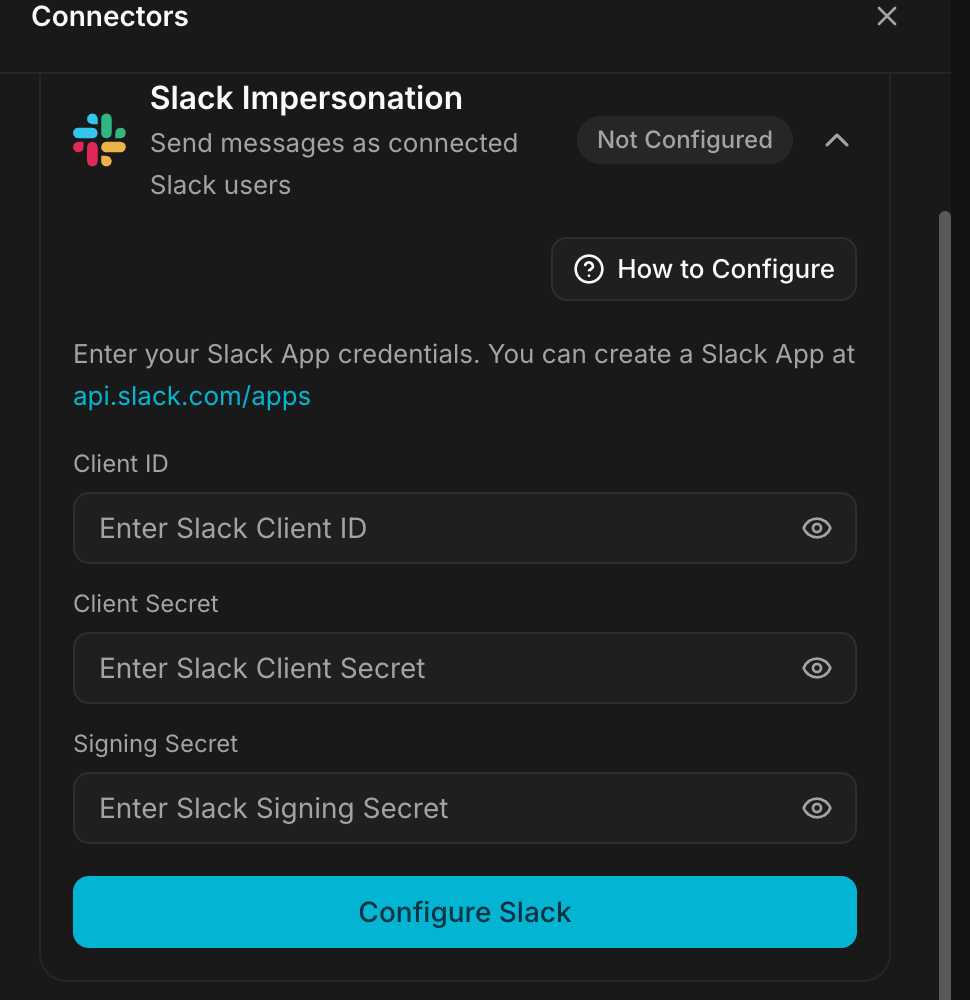
Expanding the connector gives you How to Configure, which repeats these instructions inside the product, and three fields:
| Field | What goes in it |
|---|---|
| Client ID | from your Slack App's Basic Information |
| Client Secret | same page, click Show to reveal it |
| Signing Secret | same page, used to verify incoming events |
The button is Configure Slack.
Before you start
You need a Slack workspace where you can create and install an app, and you need to know your own instance address, it goes into two Slack settings below, and a wrong one fails silently.
Configure, step by step
1. Create a Slack App
- Go to api.slack.com/apps.
- Click Create New App.
- Choose From scratch.
- Enter an App Name, for example Geta.Team. Unlike bots, this app is shared by the whole workspace, so name it after your company or the platform, not after one employee.
- Select your workspace and click Create App.
2. Collect the three credentials
- Go to Basic Information in the left sidebar.
- Scroll to App Credentials.
- Note the Client ID, the Client Secret (click Show) and the Signing Secret (click Show).
Keep them somewhere safe for step 6.
3. Configure OAuth & Permissions
- Go to OAuth & Permissions.
- Under Redirect URLs, click Add New Redirect URL and enter:
https://YOUR-INSTANCE/api/slack/oauth/callback- Click Add, then Save URLs.
- Scroll to Scopes and add the following.
Bot Token Scopes:
chat:write
im:history
im:read
users:read
User Token Scopes: these are the ones that make impersonation work, they are what lets the app act on behalf of the connected person:
chat:write
files:read
files:write
im:history
im:read
im:write
users:read
Replace YOUR-INSTANCE with your own address. The exact URLs are displayed
in the How to Configure panel inside the product, copy them from there
rather than from any documentation screenshot.
4. Configure Event Subscriptions
- Go to Event Subscriptions.
- Toggle Enable Events to ON.
- In Request URL, enter:
https://YOUR-INSTANCE/api/slack-events- Wait for the green checkmark confirming Slack verified the URL.
- Expand Subscribe to bot events, click Add Bot User Event, add
message.im. - Expand Subscribe to events on behalf of users, click Add Workspace
Event, add
message.im. - Click Save Changes.
Both lists matter: the first covers what the app receives, the second covers what it receives on behalf of the people who connected their account.
5. Install the app to the workspace
- Go back to OAuth & Permissions.
- Click Install to Workspace.
- Review the permissions and click Allow.
6. Configure Geta.Team
Back in Settings → Connectors → Slack Impersonation, enter the Client ID, the Client Secret and the Signing Secret, then click Configure Slack.
Once the workspace is configured, the users who should be impersonated connect their own Slack account from this connector. Nobody is impersonated without having authorised the app themselves.
Troubleshooting
Slack refuses the redirect URL when a user connects.
The Redirect URL in step 3 must match your instance exactly, including
https:// and no trailing slash. A URL saved for another instance verifies
fine and fails at connection time.
The Request URL never gets its green checkmark. Slack calls the URL immediately and expects an answer. Check the address for a typo, and that you used your own instance rather than an example.
Messages arrive but the employee cannot answer as the user. The User Token Scopes in step 3 were not added, only the bot ones. Add them, then reinstall the app to the workspace so the new scopes apply.
Nothing happens for one particular person. That person has not connected their Slack account. Workspace-level configuration alone does not grant impersonation.
What breaks
The Slack app lives in your Slack workspace. If it is deleted or its secret is rotated there, every impersonated user stops working at once, not one by one. Re-enter the credentials in the connector after any rotation.