
Google Workspace
Connect Gmail, Calendar and Drive to your employees, one Google account at a time.
Where
Dashboard sidebar → Settings → Connectors → Google Workspace Integration.
What it does
Connects Gmail, Calendar and Drive to your employees. Once an account is connected, an employee can read and send mail from it, see and create events, and reach the files on that Drive.
This connector has no form and no credentials to gather. Unlike Slack or Teams, there is nothing to register beforehand: you connect a Google account through Google's own sign-in window, and that is the whole setup.
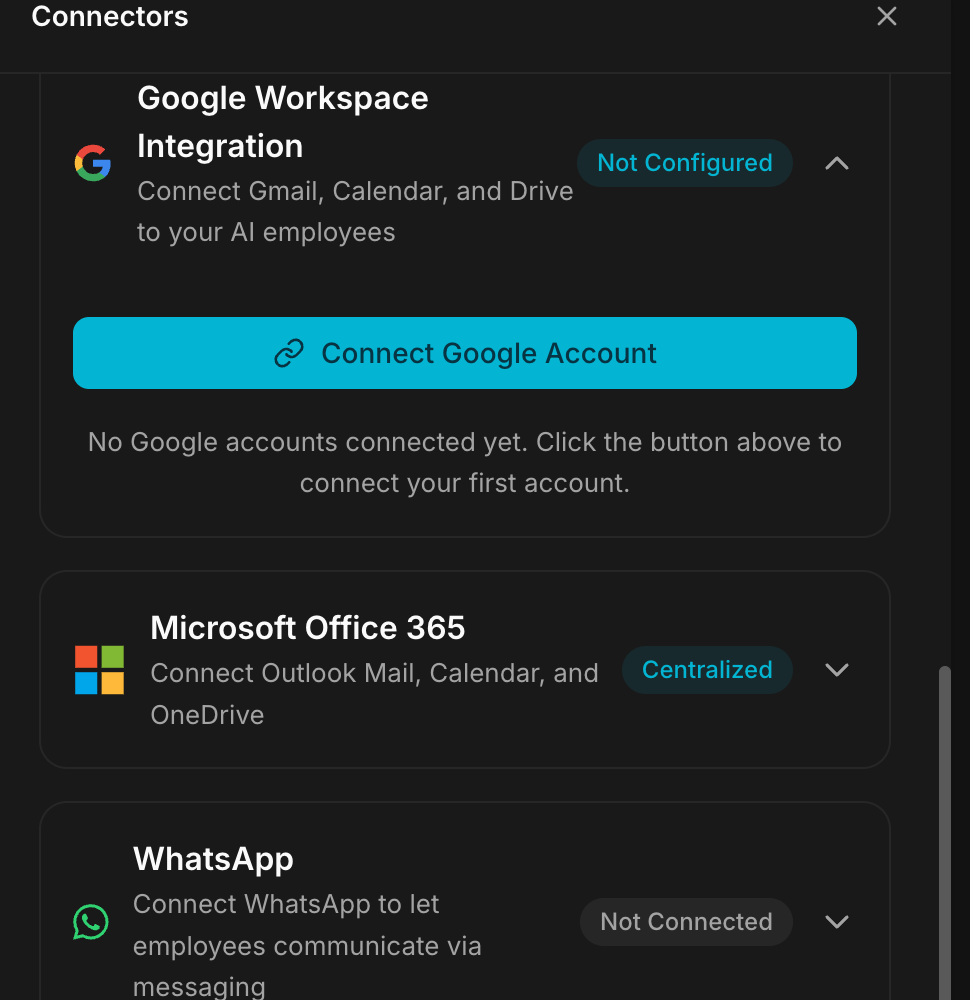
The row reads Not Configured until an account is connected. Expanded, it
shows a single Connect Google Account button and the note: No Google
accounts connected yet. Click the button above to connect your first account.
What you are authorising
The consent screen covers more than the three products in the connector's title. What is requested is:
| Area | Access |
|---|---|
| Gmail | read, send, compose and modify |
| Calendar | read, and create or change events |
| Drive | read, plus files the employee creates itself |
| Docs, Sheets, Slides, Forms | read and write |
| Profile | your email address and basic profile |
Worth knowing before you grant it: this is a working mailbox and a working Drive, not read-only access.
Connect an account
- Expand Google Workspace Integration.
- Click Connect Google Account.
- A Google window opens. Choose the account to connect.
- Review what Google asks you to authorise: this is where access to Gmail, Calendar and Drive is granted, and accept.
- You come back to the connector, and the account is listed.
Repeat for each account. Several accounts can be connected to the same workspace, and you then choose which employee uses which.
Connect the account you actually want the employee to work from. It is a real mailbox with real mail: whoever's account you connect is the identity the employee reads and writes with.
Good to know
- This is not the same thing as the employee's own address. Every employee already has a Geta.Team mailbox, described in Email & contacts. Google Workspace connects your Google mailbox in addition to it.
- Access is granted by Google and can be revoked from Google at any time, at myaccount.google.com/permissions. Revoking there cuts the employee off immediately.
- Which employee gets which connected account is decided per employee, in Integrations.
Recent additions
- Past events: the Google Calendar skill looks backwards as well as forwards, a number of days or a date range in your timezone (what did we do last month?).
- Reading Google Sheets: the Drive skill reads any sheet the account can open, a whole tab or a range of cells, returned as a table, with the list of tabs. No new Google permission needed.
- Your name on outgoing Gmail: messages go out as Name <address>, with
the display name of the connected Google account; send, reply and draft take a
--from-nameoption to change it. - Community Edition: Google connectors work on Community too (Gmail, Calendar, Drive, Docs, Sheets, Slides, Forms), including incoming Gmail notifications.
Existing employees get the Calendar and Drive changes with Skills → Reinstall.
Troubleshooting
The Google window closes and nothing is connected. The authorisation was refused, or the window was closed before the last screen. Start again with Connect Google Account and go through to the end.
The employee cannot see mail that is clearly in the mailbox. Check which account was connected, with several Google accounts signed in on the same browser, it is easy to authorise the wrong one. The connector lists the address it holds.
Access worked, then stopped. The authorisation was revoked on the Google side, or the password change invalidated it. Reconnect the account from the connector.
What breaks
The connection belongs to a Google account, not to the workspace. If that person leaves the company and their Google account is suspended, everything the employee did through it stops at once: mail, calendar and files together.