
Telegram
Connect a Telegram bot so an employee can be reached from Telegram, in private or in groups.
Where
Dashboard sidebar → Settings → Connectors → Telegram.
What it does
You create a bot on Telegram with @BotFather, paste its token here, and assign it to an employee. People then write to that bot in Telegram and the employee answers.
The webhook is set up automatically when the token is accepted: there is no URL to copy anywhere, unlike Slack or Teams. This is the quickest connector to set up.
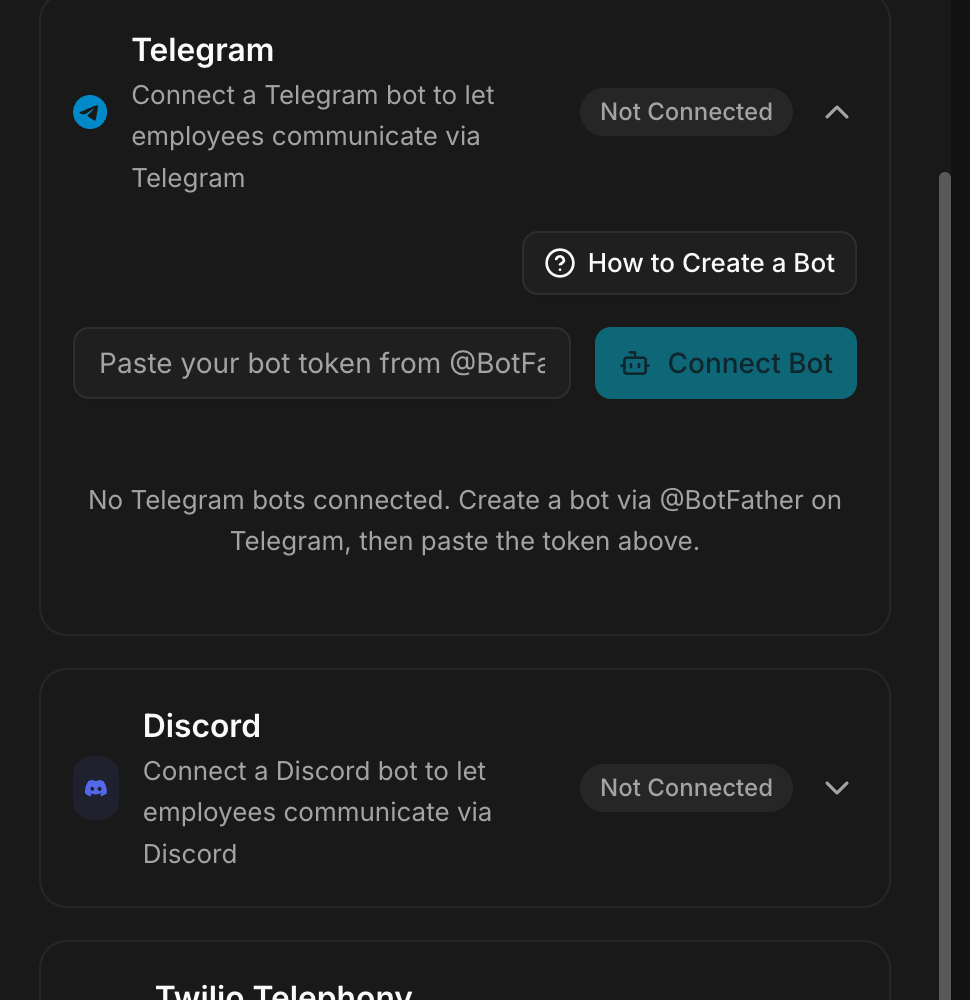
The row reads Not Connected until a bot is added. Expanding it gives you
How to Create a Bot, which repeats these instructions inside the product,
a field for the token and a Connect Bot button. Until then it says: No
Telegram bots connected. Create a bot via @BotFather on Telegram, then paste
the token above.
Create the bot, step by step
1. Open BotFather
- Open Telegram on your phone or desktop.
- Search for @BotFather, the real one has a blue verified checkmark.
- Click Start. Direct link: t.me/BotFather.
2. Create a new bot
- Send the command
/newbot. - Choose a display name, for example My Company Assistant. This is what people see, so use the employee's name if the bot belongs to one employee.
- Choose a username. It must end with
bot, for examplemycompany_assistant_bot.
3. Copy the token
BotFather replies with the bot token. It looks like:
123456789:ABCdefGHIjklMNOpqrsTUVwxyzKeep the token secret, anyone holding it controls the bot. If it leaks, send
/revoke to BotFather to generate a new one.
4. Connect the bot in Geta.Team
- Paste the token in the field in the Telegram connector.
- Click Connect Bot.
- Geta.Team validates the token and sets up the webhook for you.
- The bot appears in the list with a Connected status.
5. Assign the bot to an employee
- Click Assign next to the connected bot.
- Select the employee that should receive the messages.
- Either enable Allow messages from all chats, so anyone can write to the bot, or add specific chat IDs and usernames to the allowed list.
- Click Assign.
An unassigned bot is connected but answers nobody.
6. Customise the bot (optional)
Back in BotFather:
| Command | What it sets |
|---|---|
/setdescription | the bot description |
/setabouttext | the About text |
/setuserpic | the profile picture, use the employee's avatar |
/setcommands | custom commands |
Good to know
- People must send
/startto the bot before it can write to them. This is a Telegram rule, not ours, and it is the most common reason a first message never arrives. - The bot can be added to group chats. Use the group's chat ID, a negative number, in the allowed chats list.
- One bot can be assigned to several employees.
- Incoming Telegram messages show up in the employee's chat with a blue Telegram badge, so you always know which channel a message came from.
Videos in the chat
Videos sent on Telegram play in the employee's chat instead of arriving as a file to download.
Troubleshooting
The bot never answers.
The person has not sent /start yet, or the chat is not in the allowed list
and Allow messages from all chats is off.
The token is refused when you click Connect Bot.
Copy it again from BotFather without the surrounding text, the token is the
digits:letters string only. If it was revoked, generate a new one with
/newbot or /token.
The bot works in private but not in a group. Add the group's chat ID, the negative number, to the allowed chats, or enable Allow messages from all chats.
Messages arrive but the wrong employee answers. The bot is assigned to another employee. One bot, one assignment per employee: check it in the connector row.
What breaks
The bot belongs to your Telegram account through BotFather. If someone runs
/revoke or deletes it there, the employee goes silent and the platform shows
the bot as connected until you refresh the token.