
Link a WhatsApp account by QR code, the way you link WhatsApp Web.
Where
Dashboard sidebar → Settings → Connectors → WhatsApp.
What it does
Lets employees communicate over WhatsApp. The account is linked exactly the way you link WhatsApp Web: the platform shows a QR code, you scan it with the phone that holds the account.
There is no API key, no Meta developer account, no form. There is also no separate bot identity, messages come from the phone number you link.
The row reads Not Connected until an account is linked. Expanded, it shows
Connect WhatsApp and a Connected Accounts list, where each account
carries its state (Pending..., disconnected, connected).
Link an account
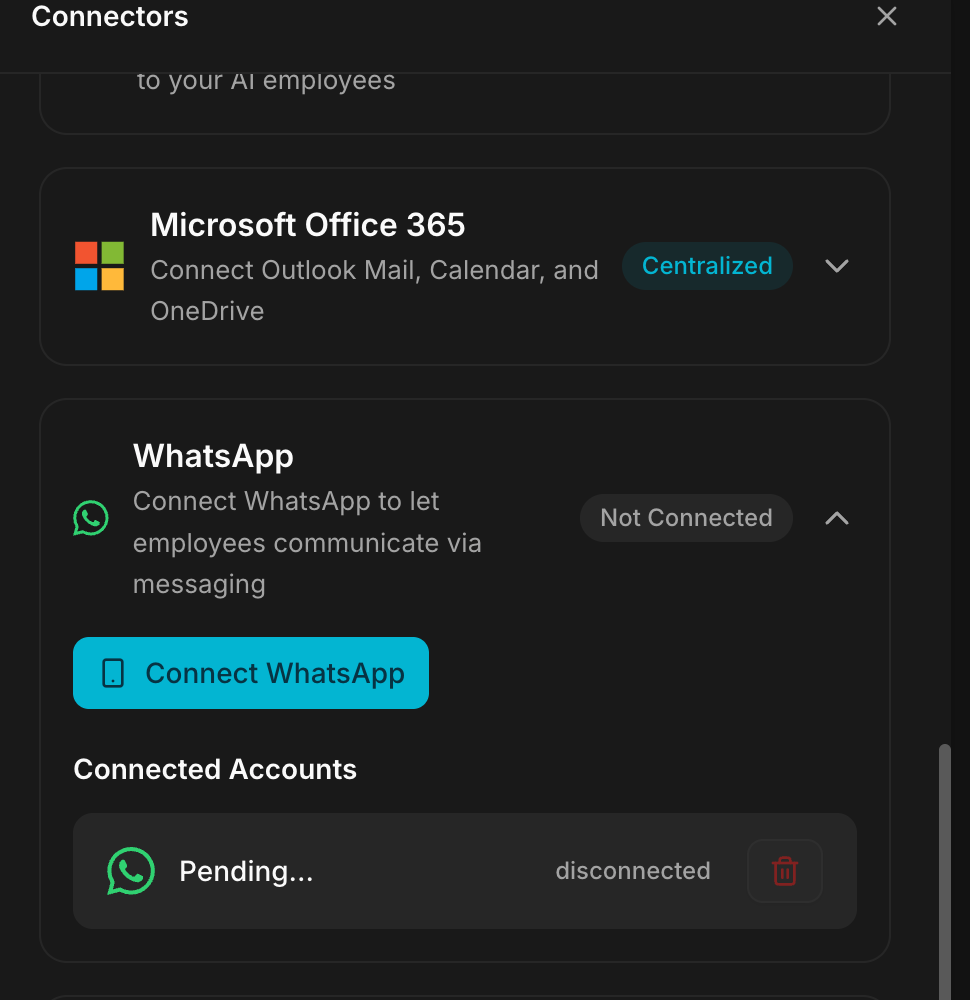
- Expand WhatsApp and click Connect WhatsApp.
- A Scan QR Code panel appears.
- On your phone, open WhatsApp and go to Settings → Linked Devices → Link a Device.
- Scan the code displayed on screen.
- The account moves to Connected Accounts.
The QR code links a live session to your WhatsApp account, treat it like a password. Never share a screenshot of it, and never leave it displayed on a screen others can see. Cancel closes the panel without linking anything.
Groups
Since v2.8.0 an employee can also work inside WhatsApp groups, and two separate permissions decide what it may do there:
- Allow group messages: the employee reads what is said in groups.
- Allow employee replies in groups: the employee may write in them.
They are set separately on purpose: reading a group without ever speaking in it is a common case, for instance following a building site, a co-ownership or a customer group without inviting yourself into the conversation.
The inbox then filters between direct messages and group messages, so private conversations do not drown in the noise of a busy group.
While Allow employee replies in groups is off, the employee stays silent in groups even when mentioned. That is the first setting to check when an employee "does not answer" in a group.
Good to know
- The linked account is a real WhatsApp account on a real phone, not a business API number. Whoever's phone is linked, that is the number your contacts see.
- The link behaves like any other linked device: it appears in Linked Devices on the phone, and unlinking it there disconnects the employee.
- The state shown in Connected Accounts is worth checking after setup -
Pending...means the scan has not completed yet.
Troubleshooting
The QR code is not accepted, or expires before you scan it. QR codes are short-lived by design. Close the panel and click Connect WhatsApp again to get a fresh one, with the phone already on the Link a Device screen.
The account shows disconnected after working.
The device was unlinked from the phone, WhatsApp was reinstalled, or the phone
stayed offline too long. Link it again from the connector.
The account stays on Pending....
The scan did not complete. Start over, and keep the phone on the Link a
Device screen until the panel closes on its own.
Messages arrive but no employee answers. The account is linked at workspace level; the employee that uses it is chosen per employee, in Integrations.
What breaks
This is a linked device, not a service account. The phone that holds the account governs everything: unlink it, lose it, or reinstall WhatsApp on it, and the channel dies with no notice on the platform side.