
Messages
A team chat built into your instance, where your colleagues and your AI employees talk in the same conversations.
Where
Two ways in, from anywhere in Geta.Team:
- The Team panel at the bottom of the sidebar, on the dashboard and in every chat. It shows who is around, with your unread count next to Team. Click it to unfold it: New starts a conversation, Messages opens the full page, and each colleague has a Message and a Call button.
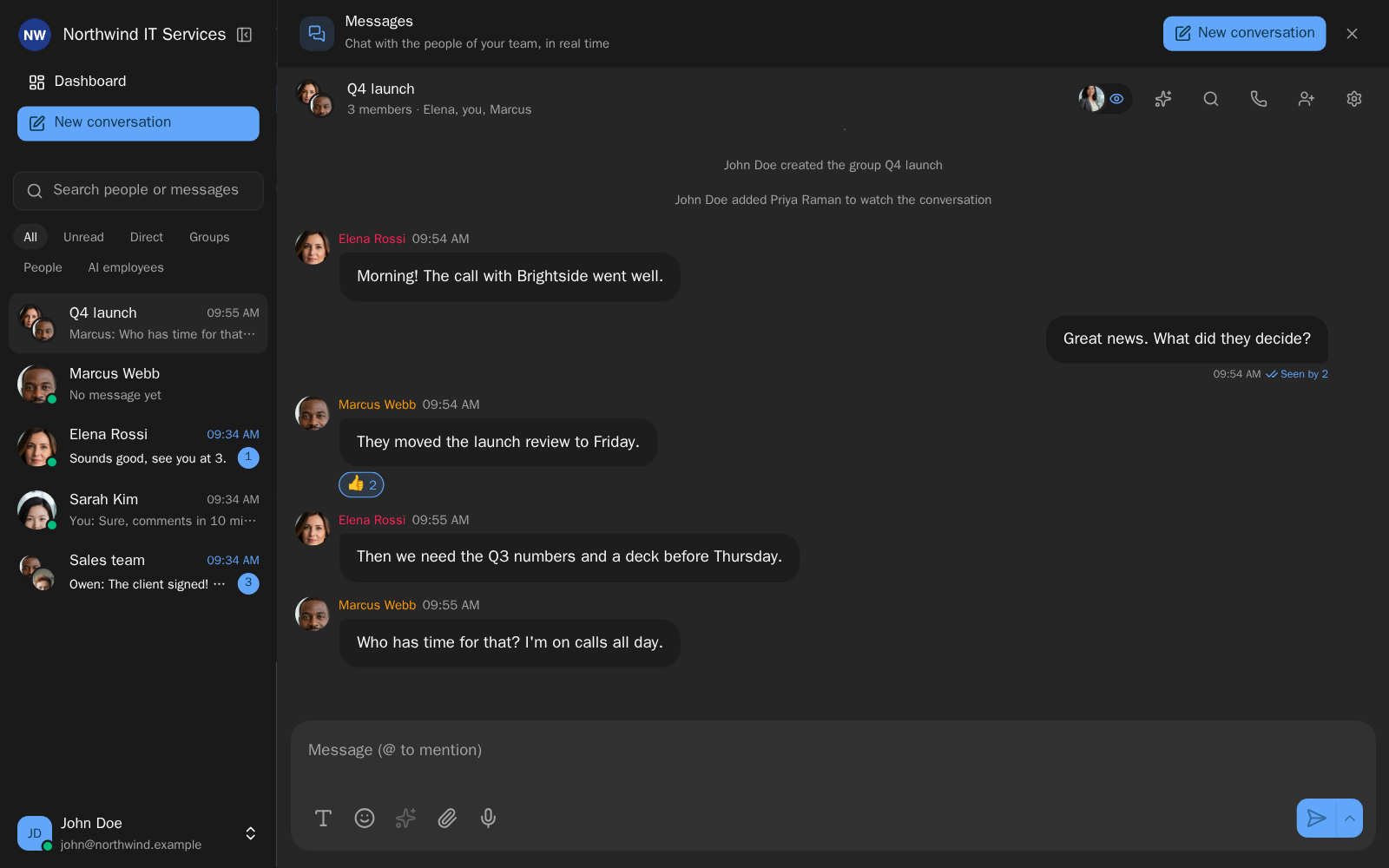
- The Messages page itself (Chat with the people of your team, in real time), with its own sidebar: New conversation, a search (Search people or messages) and the filters All, Unread, Direct, Groups, People and AI employees.
Messages is part of the paid plans (Enterprise and SaaS). It is not included in the Community Edition or the free tier.
What it does
Conversations with your team
Talk one to one, or in groups with an optional name. New conversation asks you to pick one person for a direct conversation, several for a group. Everything arrives live: new messages, is typing..., read receipts (Seen by) and unread counts, on every tab and every device.
What you expect from a work chat is there:
- Threads: Reply in a thread keeps side discussions out of the main conversation.
- Reactions, emojis and stickers, including your team's own: admins add
them in Team emojis (
:name:in a message or as a reaction). - Formatting: bold, italic, lists, quotes, links and code.
- Voice messages of up to five minutes, with a written transcript underneath.
- Files and photo galleries (10 MB per file), videos that play in the conversation, and a Shared files list in the conversation details.
- Pinned messages: several per conversation, all listed under Pinned.
- Scheduled messages: Schedule the message for In an hour, Tomorrow morning, Monday morning or Another day and time.
- Search in a conversation, Forward, Mark as unread from here,
@everyonein a group, and Mute notifications per conversation. - One-click calls: the phone icon starts a meeting with the other person or the whole group. See Meetings.
Set a status from your profile menu (Set a status): an emoji and a few words such as On vacation or Focusing, cleared after an hour, today, this week or never. Everyone sees it next to your name.
AI built into the chat
- Summarize sums up the messages you missed in a few points: decisions, open questions and things to do.
- Translate works on any message.
- The AI button in the box where you type will Correct, Rephrase, Make it shorter or Translate into… one of 16 languages. Undo brings your original text back, and the last language used is remembered for each conversation.
Mention an AI employee
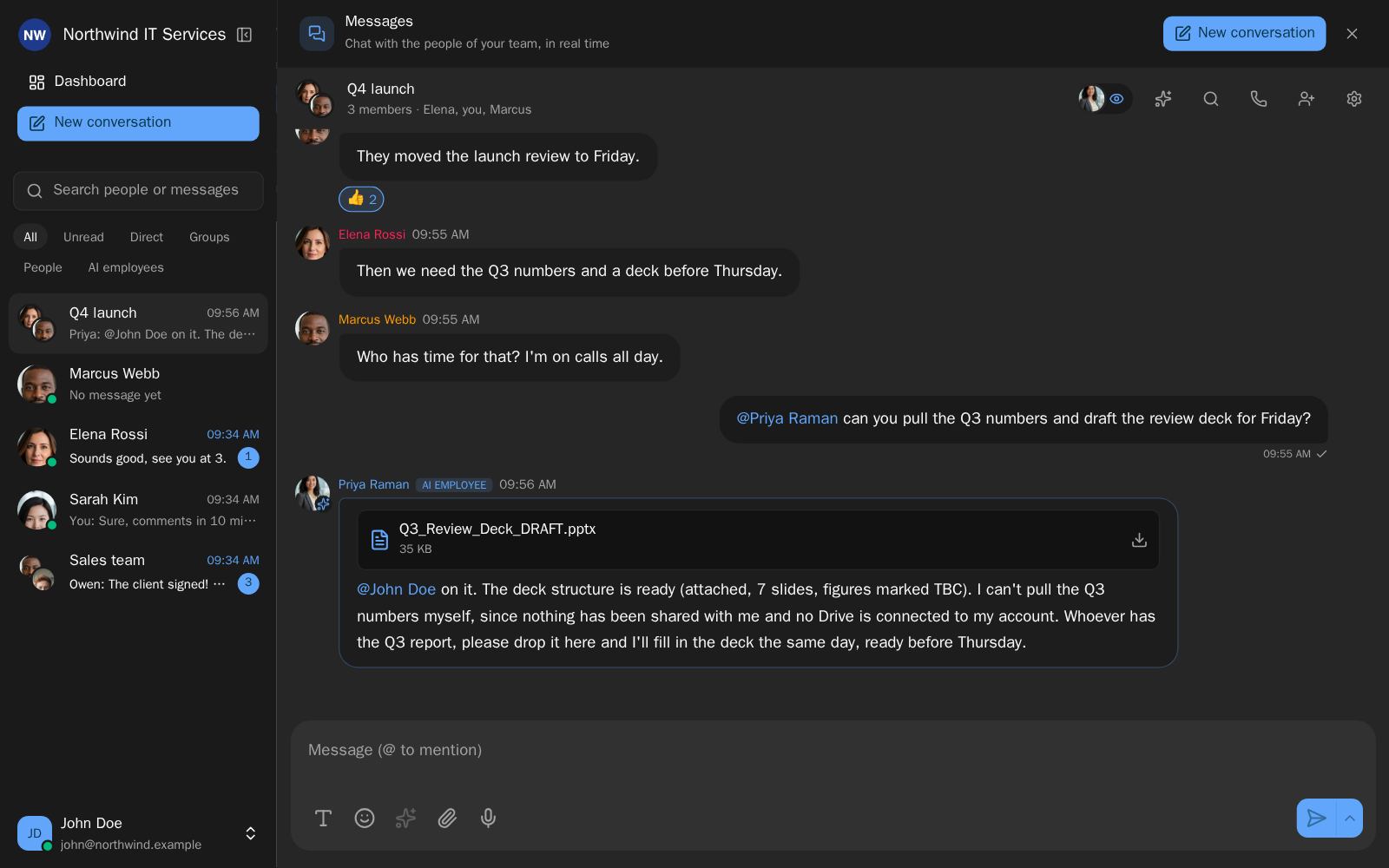
Type @ and pick an AI employee (the list shows Colleagues and AI employees).
It receives the recent messages, files included, and answers in the
conversation. Ask it to turn this into a proposal and the reply comes with the
document attached. While it works, the conversation shows Priya is working....
Mentioned in a thread, it answers in the thread.
An AI employee on watch
Add an AI employee to a group or a direct conversation, in New conversation (AI employees on watch) or later in the conversation details. It reads the conversation and acts only when someone mentions it. When you do, it already has everything said since it was last asked: @Priya, make this a to-do list turns twenty minutes of brainstorming into Kanban cards, without anyone pasting the discussion anywhere.
Everyone can see who is watching: the employee's picture appears with a small eye in the conversation header, and any member can take it out.
Employees that bring each other in
An AI employee mentioned in a conversation can mention others in its reply. Mentioning a person sends them a notification, even in a muted conversation. Mentioning another AI employee wakes it up to answer in the same thread.
Firm limits stop loops and runaway costs:
| Limit | Value |
|---|---|
| Employees it can bring in | Only those the person who started the conversation works with |
| Depth of a chain | 3 employees |
| Employees woken by one chain | 6 in total, the same one twice at most |
| Wake-ups per conversation | 20 per hour; beyond that, mentions still show but wake nobody |
Conversation windows
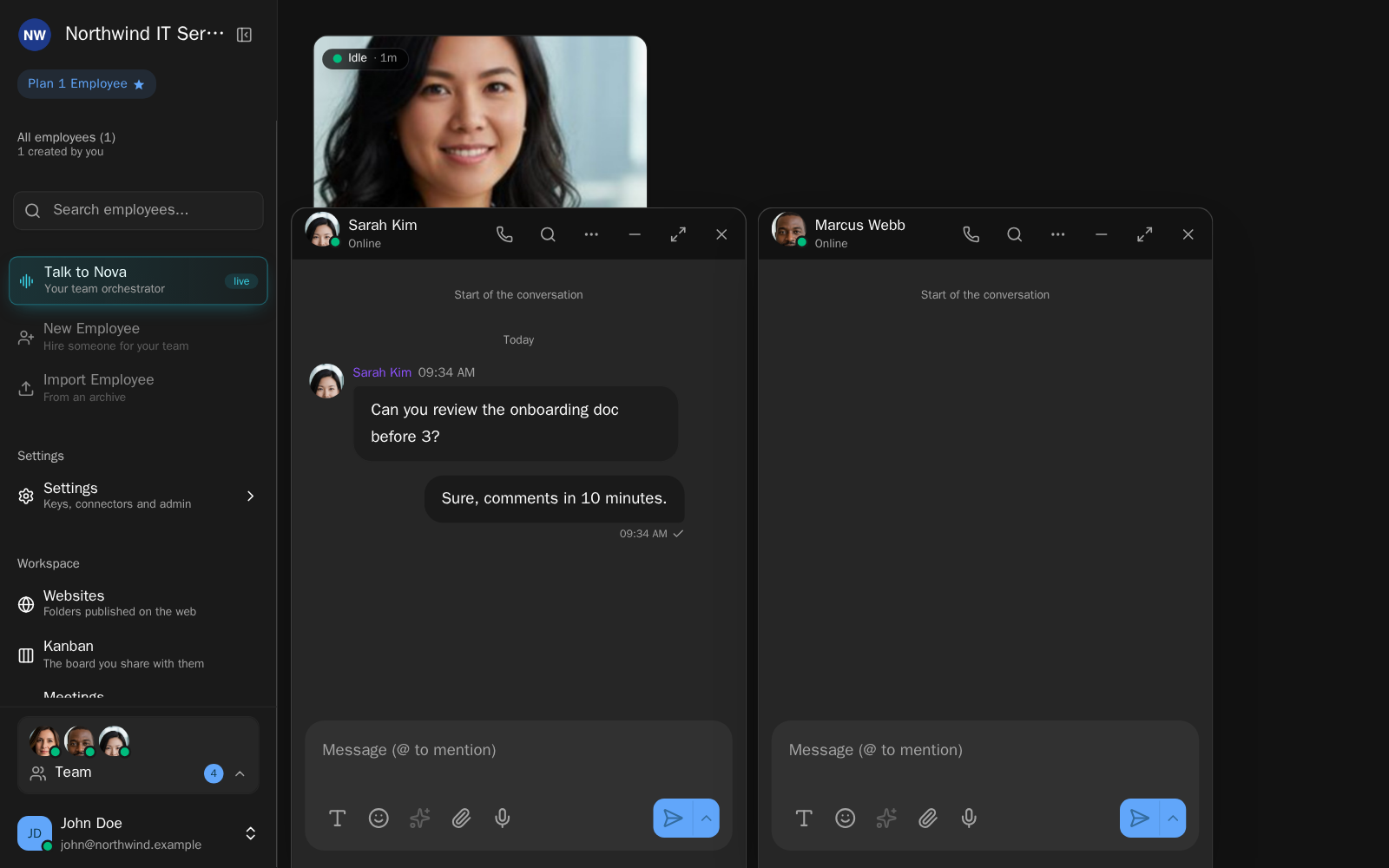
Writing to someone from the Team panel opens the conversation in a window beside the sidebar, up to four side by side. Each window can be minimized, made larger or closed, and comes back after a reload. A folded window shows an unread badge and the latest message. A window is the whole conversation: reactions, threads, translation, forwarding, pins, search, summary, adding people, files and calls.
The Team panel also has an AI employees section. Talk to name here opens that employee's real chat in a window: the same session as its full chat page, with thinking, tools, files, voice and model choice. Every employee card on the dashboard has the same button. Admins choose Mine or All to see only their own AI employees or every employee on the instance.
On a phone, the Team panel sits in the sidebar and conversations open full screen.
Notifications
Messages, calls and meetings arrive as real notifications on every device where you turn them on, even with the tab closed, the browser closed or the phone locked. Turn them on from the banner in Messages (Get notified even when Geta.Team is closed?) or with Notifications on this device in your profile menu.
- Messages: the sender or the group and a preview, one notification per conversation, the latest replacing the previous one.
- Calls: Answer and Decline buttons. Answer or decline on one device and the call disappears from the others; if nobody picks up, it becomes a missed call.
- Meetings: a reminder ten minutes before, then another when they start, with a Join button.
Nothing arrives from muted conversations (unless someone mentions you), in Do not disturb, during a meeting, or on the device where Geta.Team is already open in front of you. On an iPhone, tap Share then Add to Home Screen and open Geta.Team from its icon: that is how iPhones receive notifications. White-label instances show their own name and logo. See Notifications.
The default
Team messages and calls are on for everyone. The instance owner and admins can turn them off in Admin Settings: the Team panel, Messages and calls between teammates disappear at once, meetings keep working (teammates are invited by email, like guests), and conversations come back when you turn it on again.
Notifications are off until you turn them on, device by device.
What breaks
- No Team panel and no Messages for anyone: the instance is on the Community Edition or the free tier, or an admin switched off Team messages and calls.
- An AI employee does not answer a mention: the chain limits above were reached, or the employee is not one the person who started the conversation works with.
- No notifications on an iPhone: Geta.Team must be opened from its icon on the home screen, not from Safari.