
Meetings
Video meetings built into your instance, with your team, your guests and your AI employees in the same room.
Where
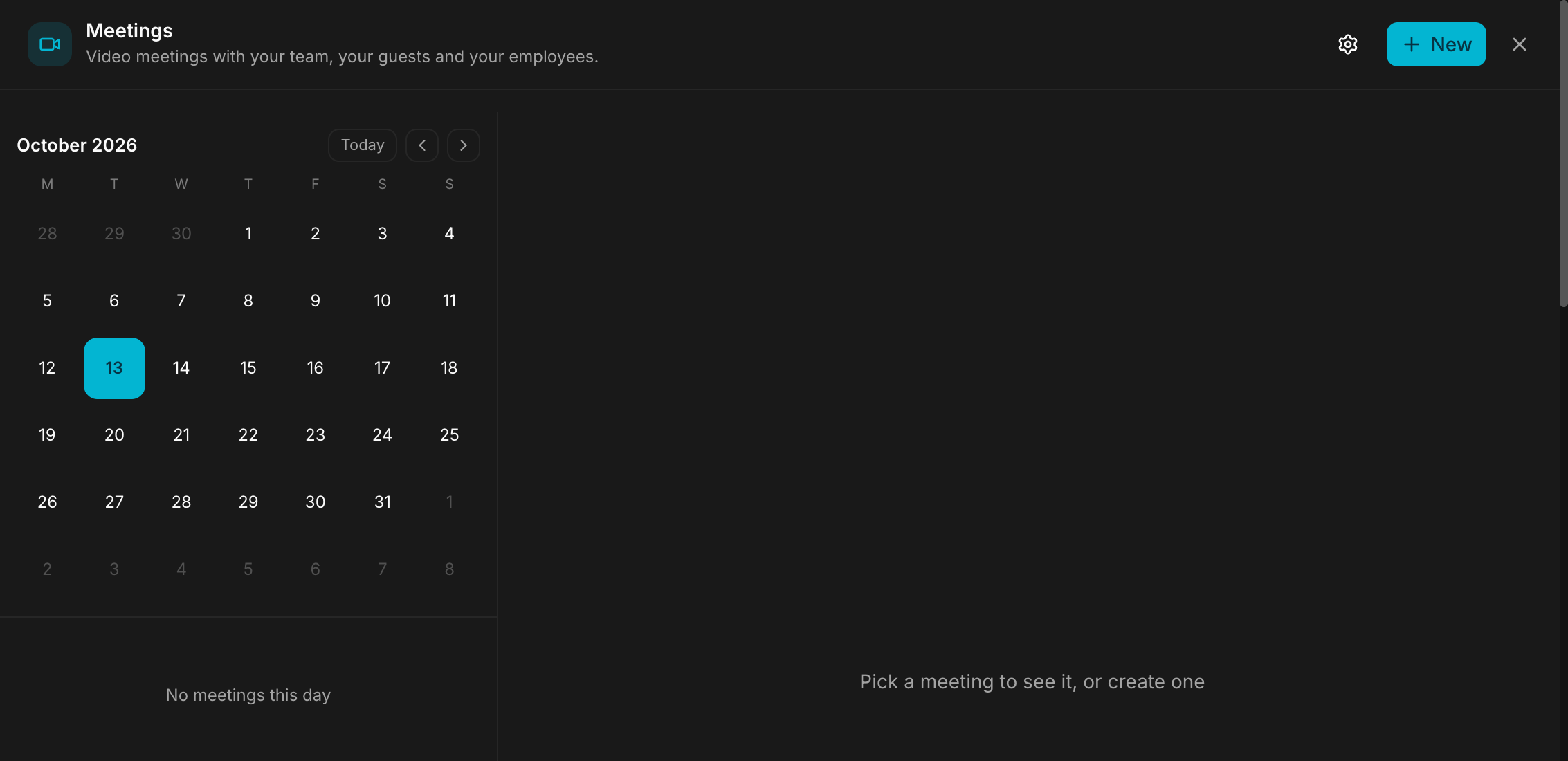
Dashboard sidebar → Meetings. The page opens with two big buttons, Start now and Schedule, and lists your meetings with a calendar view. Use Start now when you need a meeting right away and want to invite people from inside the room.
What it does
Geta.Team has its own video meetings. They run on the video server that already ships with your instance, so there is nothing extra to install, and your AI employees can join them as participants.
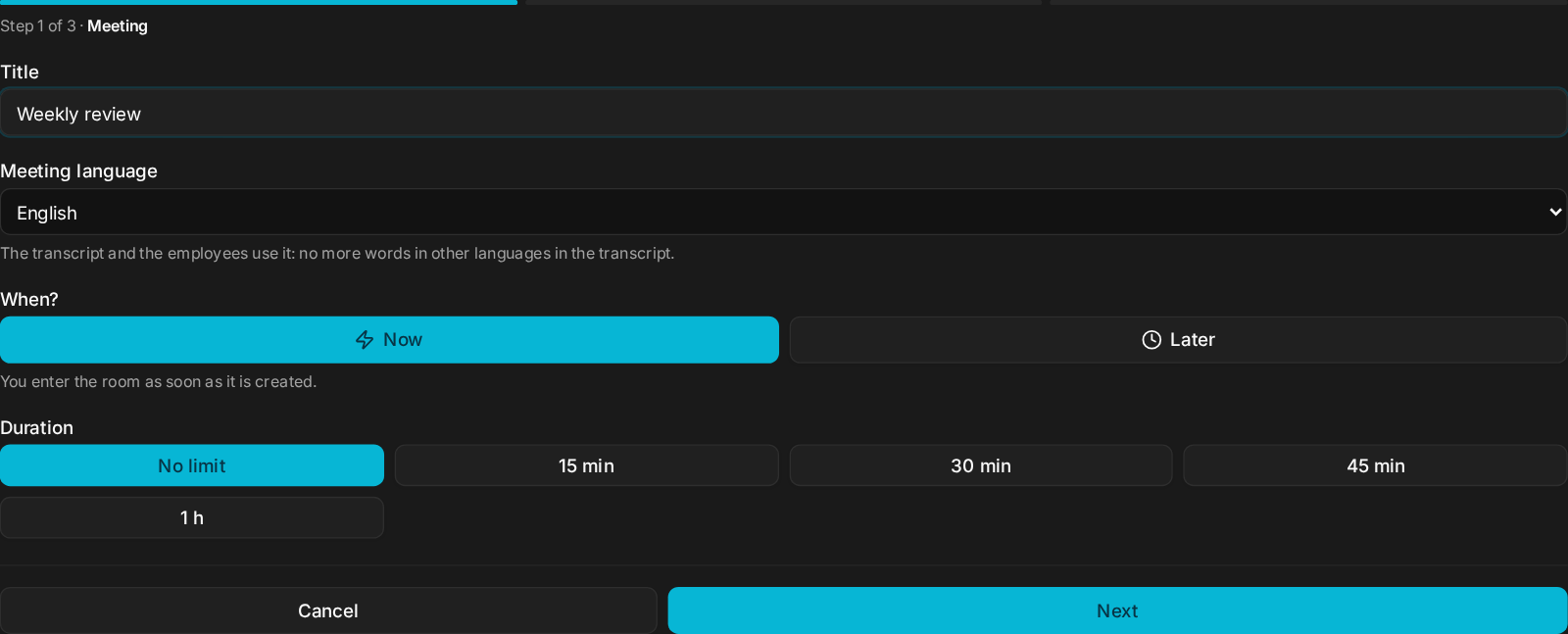
Creating a meeting takes three steps:
- Title, for example Weekly review or Client demo.
- Now or Later. Now puts you in the room as soon as it is created. Later creates the link to share; the room opens 10 minutes before the start.
- Who attends: your employees, members of your team, and guests by email.
You get a link to share. Guests invited by email receive a personal link and an invitation email with a calendar file, and go straight in. Guests who join with the shared link wait in the waiting room until you let them in.
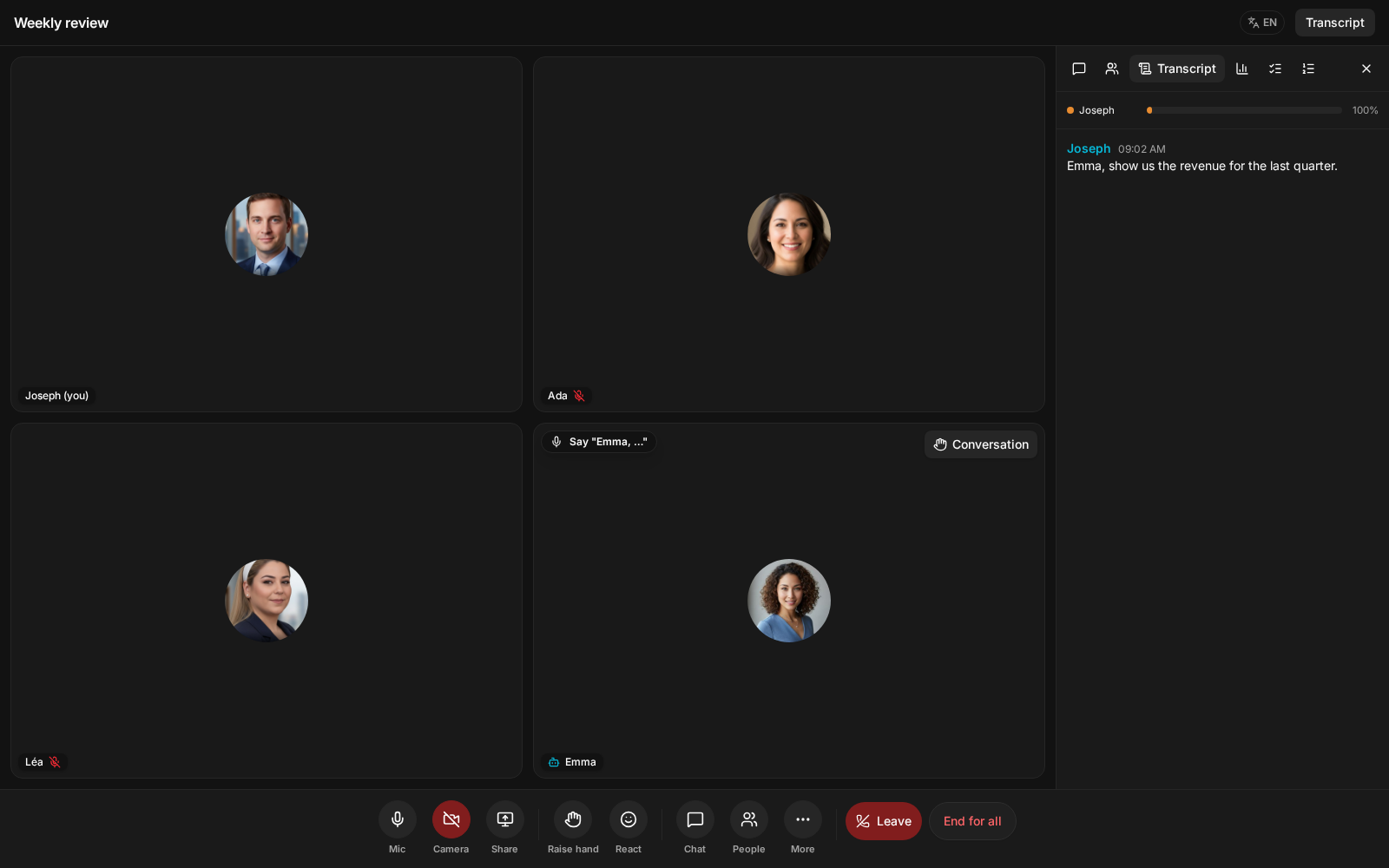
In the room you find what a modern meeting tool offers: cameras, screen sharing (one share at a time, the person sharing can pause and resume), a chat that takes files and shows link previews, raised hands, reactions, polls, a shared whiteboard, background blur and virtual backgrounds, and a noise filter that removes keyboards and fans.
The side panel has four tabs: Transcript, Actions, Agenda and Polls.
Sharing the link
Paste a meeting link into Slack, Teams, WhatsApp or LinkedIn and it shows a proper preview card: the title, the organizer, the date and time in the organizer's time zone, and photos of the employees attending. Employee links show the employee's photo, name and job. White-label instances show their own logo and colours.
Your team, one click away
At the bottom of the sidebar, the Team card shows how many people are online, with their faces and a status dot. Click it for the full list: people online with a Call button, people offline greyed out underneath, and a search by name or email.
Call starts a meeting with that person right away and rings them inside Geta.Team: no email, no link to copy. If they are already in a meeting, you see it, with Ask to join.
| Dot | Meaning |
|---|---|
| Green | Geta.Team is open |
| Amber | Not touched for ten minutes |
| Red | In a meeting, or Do not disturb |
Do not disturb, a switch in the Team card, turns your dot red and stops anyone ringing you until you turn it off. Employees have a status too: their dashboard card shows In a meeting while they are in one, and you can start a meeting with an employee from its screen, next to voice and video calls.
Incoming calls
- Decline stops the ringing on every tab you have open. The caller sees that you declined, or that you did not answer after 35 seconds.
- Missed calls stay in the corner of Geta.Team, with how many times the person called and a Call back button, until you have seen them, on every device.
- A call in a background tab makes the tab title blink Incoming call from… until you look.
The calendar
The calendar view shows every meeting, with time slots from 15 minutes to 2 hours. You get a reminder and a ring inside Geta.Team when a meeting starts. An admin can add 15 minutes to a running meeting and ring a team member into it.
The default
A meeting is not recorded unless you choose Record the meeting when you create it. Employees you invite stay quiet until someone calls them by name.
When a meeting ends by itself
- At the end of its time slot, for everyone in it.
- 2 minutes after the last person leaves. Only people count (team members and guests), not employees. If someone comes back within the 2 minutes, the meeting goes on. You do not need to press End the meeting for everyone.
- 10 minutes after its start if nobody came. It closes without notes or replay.
When nobody is left, the recording pauses: no minutes of an empty room. It resumes as soon as someone comes back. Employees leave an empty room after one minute.
What breaks
- A guest who joins by link sits in the waiting room until an admin presses Let in. If nobody is watching, the guest waits.
- Leaving is not ending: the meeting goes on without you. Leave asks you to confirm first. If you drop out anyway (closed tab, lost connection), a banner at the top of Geta.Team says the meeting is still going, with Rejoin: you come back as the same participant, with no duplicate in the list or the transcript. Guests can open their link again and go straight back in, without a new email code. End the meeting for everyone disconnects everybody.
- One meeting at a time: open a meeting while you are in another one and Geta.Team asks whether to Stay there or Switch here. Switching hangs up the other one, wherever it is open.
Next: Employees in a meeting.