
Employees in a meeting
Call an employee by its name, let it present on screen, give it work, and pick a facilitator.
Where
Invite employees when you create the meeting, or add them from the room. Each one gets its own tile, with its photo.
Calling an employee
Employees in a meeting stay quiet by default. There are three ways to talk to one:
| Way | How it works |
|---|---|
| Say its name | Anyone says "Emma, …" and Emma answers out loud, in its own voice. It listens to the phrase from that person's microphone only, ignores anything without its name, and needs its name again after each answer. When two people call it at once, it answers them in turn and shows who is next on its tile. |
| Talk | The button on its tile does the same in one click, useful in a noisy room. |
| Conversation | For a longer exchange: the employee hears everything you, or people you choose, say without its name, until you press End the conversation. |
The employee knows everything said and written in the meeting so far. Quick questions are answered in a few seconds from what has been said and what it remembers.
Employees talking to each other
When you call an employee by name, it hears the other employees in the meeting as well as the people. If Emma says "Courtney, what is the capital of Italy?", Courtney answers Emma just as she would answer you. Start with several names, "Emma and Gordon, how are you?", and both reply. A name in the middle of a sentence is only a mention, so nobody jumps in by accident.
They take turns: one employee speaks at a time, and the next one waits until the first has finished. They keep the exchange going while there is something useful to say and stop once it turns into polite back-and-forth. Without a person speaking, they stop after eight exchanges at most.
Silence, in the header, stops every employee at once. They don't talk to each other again until someone in the room speaks.
Files in the meeting chat
Messages, images and documents posted in the meeting chat reach your employees. Drop in a PDF, a Word document, a slide deck or a spreadsheet and ask about it out loud: the employee has read it. Post a photo and it can describe what is in it.
What its tile shows
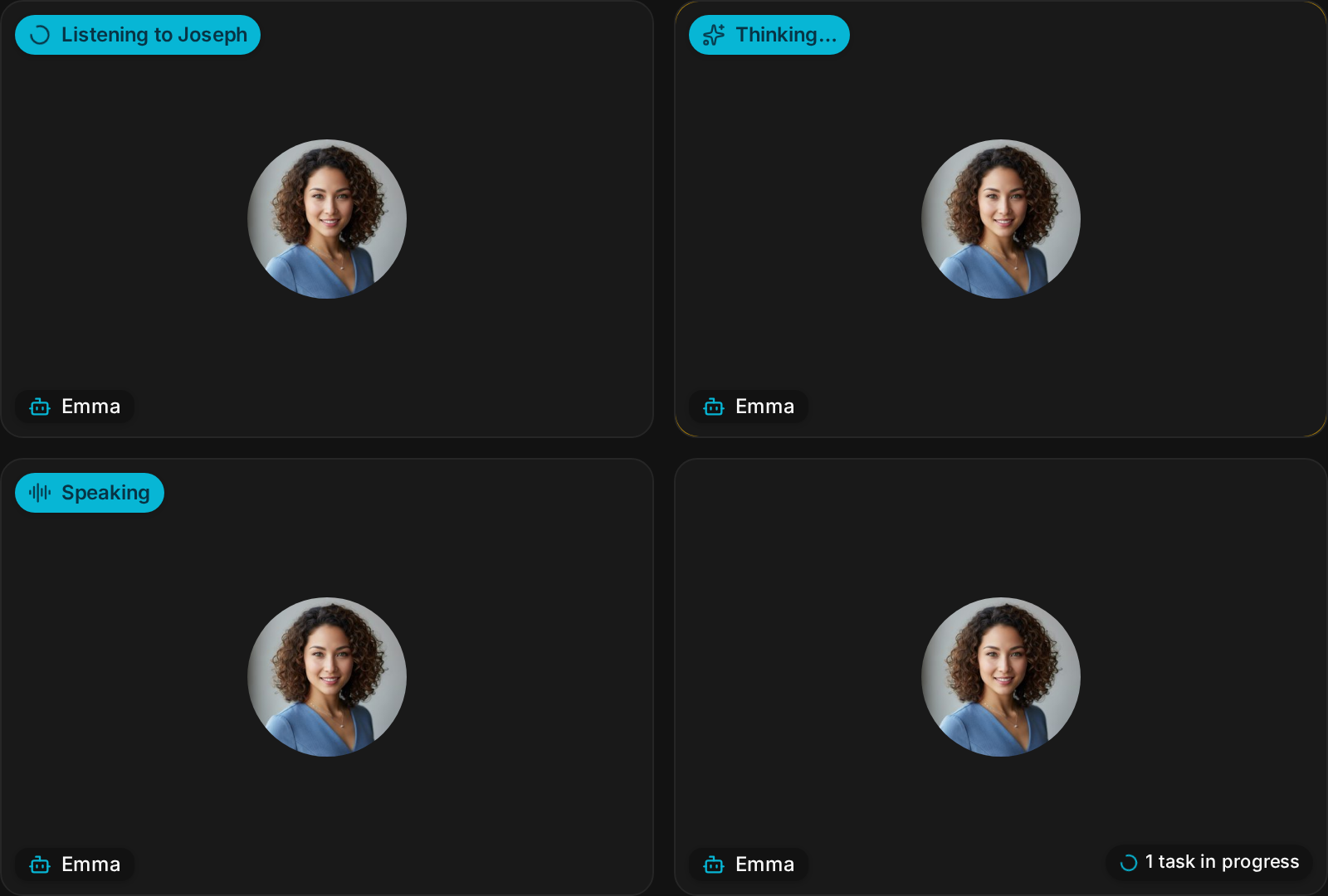
The tile always says what the employee is doing: Listening to Joseph, Thinking…, Speaking, or 1 task in progress.
Giving it work
Ask it to send the follow-up email or add a card to the kanban, and it does the work from its chat session, with all its skills, then says out loud when it is done. When it agrees to a task, it does it right away.
Only the owner or an admin can give an employee work or ask about its memory. Anyone can talk to it; a guest cannot make it act for you.
Presenting on screen
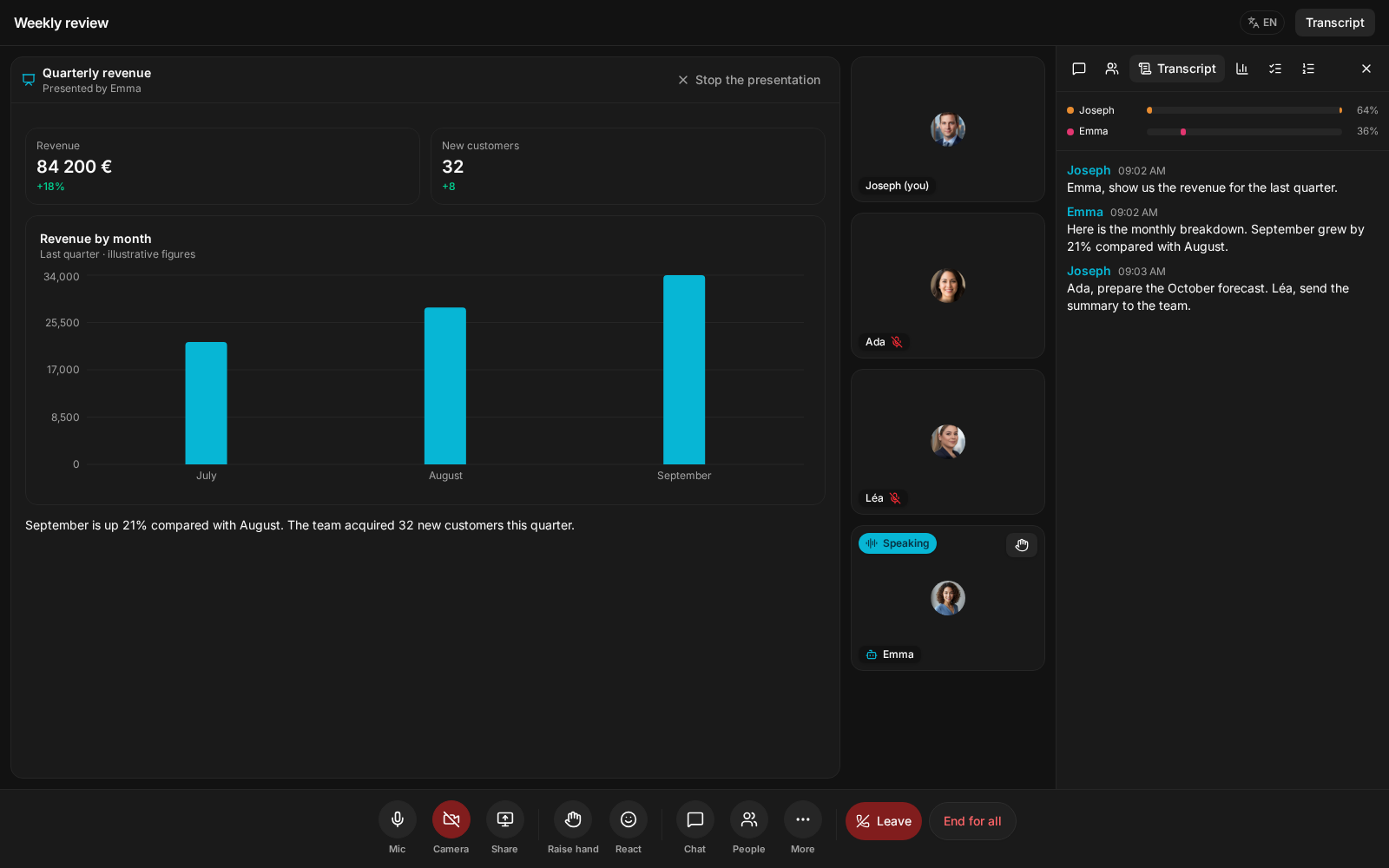
Ask out loud, "show us September's sales on screen": the employee builds the chart and presents it to everyone, like a shared screen. People move to a strip beside it, above it on a phone, and the employee talks through what it shows. Real work, like reading a file or calculating figures, runs in its chat session and the result appears on screen by itself when it is ready.
The presentation reads Presented by Emma. Stop the presentation ends it. When an employee shows its own photo or files, guests can see them too.
The facilitator
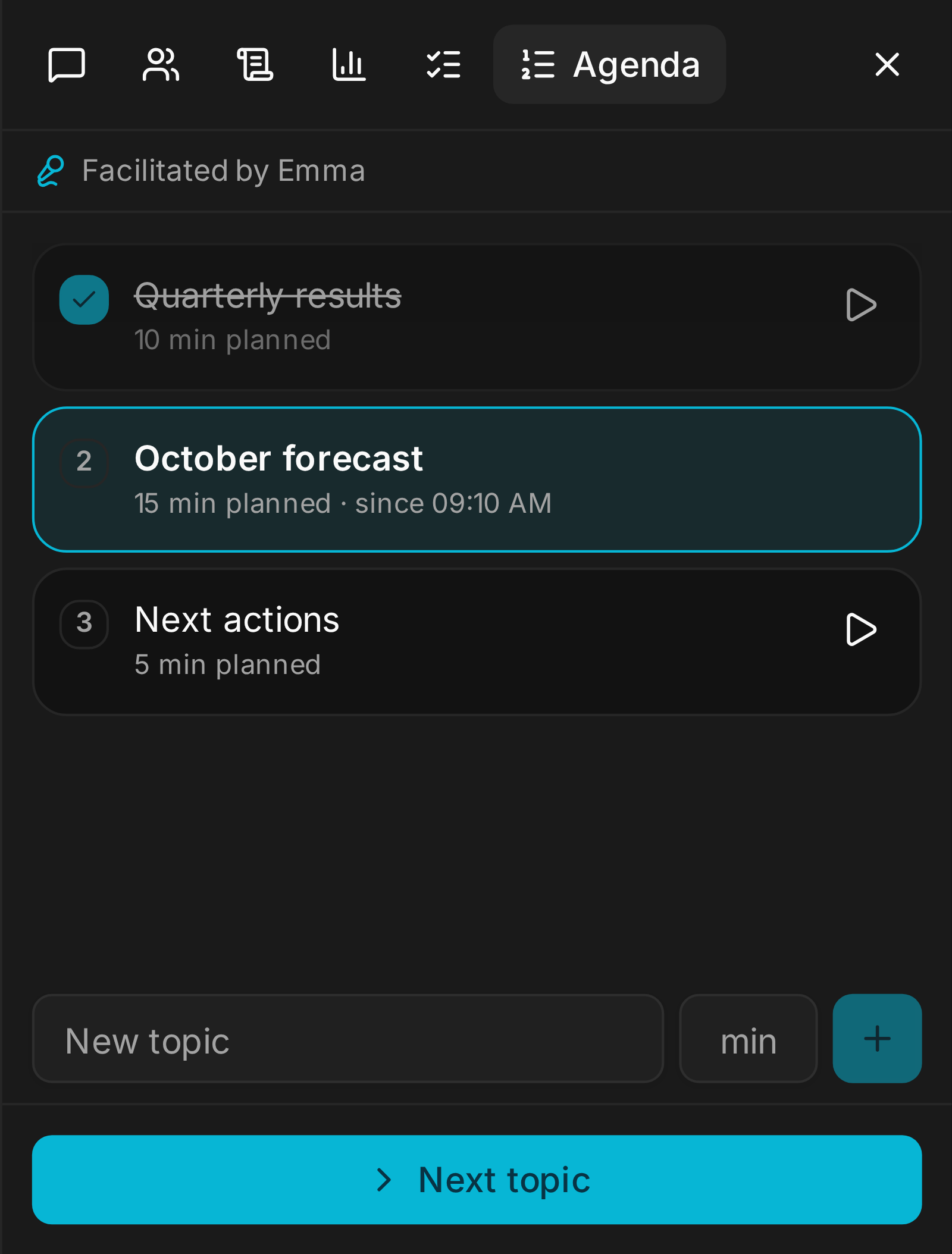
In the Agenda tab, choose one of your employees as Facilitator and add topics with their planned minutes. The facilitator waits for the agenda to start, with Start the agenda or when you ask it out loud. Then it welcomes everyone, opens each topic in order, says when a topic runs over, and five minutes before the end turns to the topics nobody has covered yet. Topics can be marked as covered by hand.
The default
Employees are silent until called, and they never keep listening on their own: after each answer, they need their name again.
What breaks
- In a room where several people talk at once, prefer Talk or Conversation: a name lost in the noise is not heard.
- A guest asking an employee to send an email gets an answer, not an action. Ask it yourself, or make it an action item.
Next: After the meeting.