
Admin Settings
Team messages and calls, context window, and managed image generation.
Where
Settings → Admin Settings.
What it does
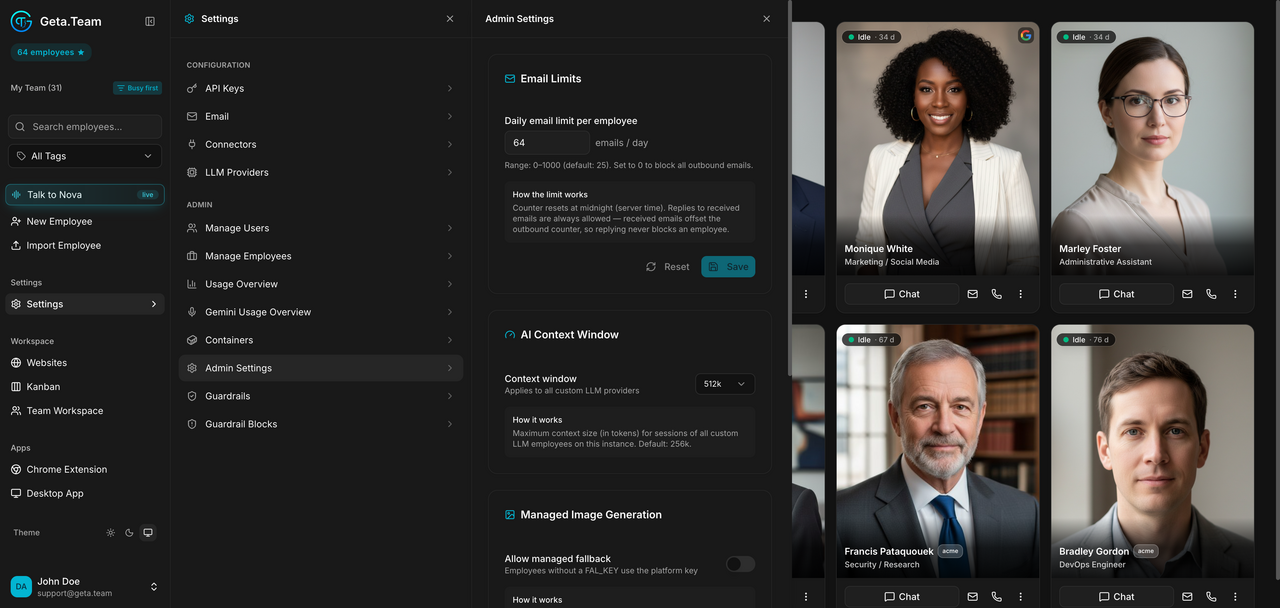
Three instance-wide settings. Only the instance owner and admins can change them.
Team messages and calls
Show team messages and calls, on by default. It controls the Team panel, Messages and calling a teammate, for everyone on the instance. Switch it off and they disappear at once, in every open tab. Meetings keep working, without the Team tab: teammates are invited by email, like guests. Conversations are kept and come back when you switch it on again.
There is no daily email limit any more (removed in v4.0.1). To restrict who an employee may write to, use its allowed-recipients list: see Email.
AI Context Window
Maximum context size, in tokens, for sessions of all custom LLM employees on this instance. Default 256k. It applies to custom providers only, so it is a BYOK setting in practice.
Managed Image Generation
Allow managed fallback: employees without their own FAL_KEY use the
platform key. Turn it off and image generation only works for employees that
brought a key.
Studio
How many Studios can be open at once on the instance (4 by default; a project open by several people counts once), and the CPU and memory of each one (1 vCPU and 2 GB by default, for its preview, builds and quality checks). Past the limit, the next Studio says it is full for now, shows its place in line, and opens by itself as soon as a place frees up.
Disk
Two thresholds for the instance's disk: a warning (75 % used by default) shows a yellow banner on every page for every admin, then critical (90 % used or under 10 GB free by default) a red one, before the disk is full and the instance stops working. The banner goes away once back under. The Disk sheet of the admin menu shows the disk (used, free), what each employee takes (its folder and its container) and Docker's own space, measured when the sheet opens.
Call recordings
How long the sound of the calls recorded with the desktop app is kept: 7 days, 30 days (the default), 90 days or 1 year. A change also applies to the calls already recorded. Only the MP3 is deleted; the transcript stays with the employee.
What breaks
If nobody on the instance sees the Team panel or Messages, check Team messages and calls first: it was switched off here, not broken.