
Automation
Scheduled tasks: creating one, editing one, and choosing the right schedule.
Where
Configure ‹employee› → Automation. The panel is called Task automation.
What it does
A task is a brief plus a schedule: every day at 17:25, reclaim what Docker can free and email me a report. It runs whether or not anyone opens the app. This is what separates an employee from a chat window.
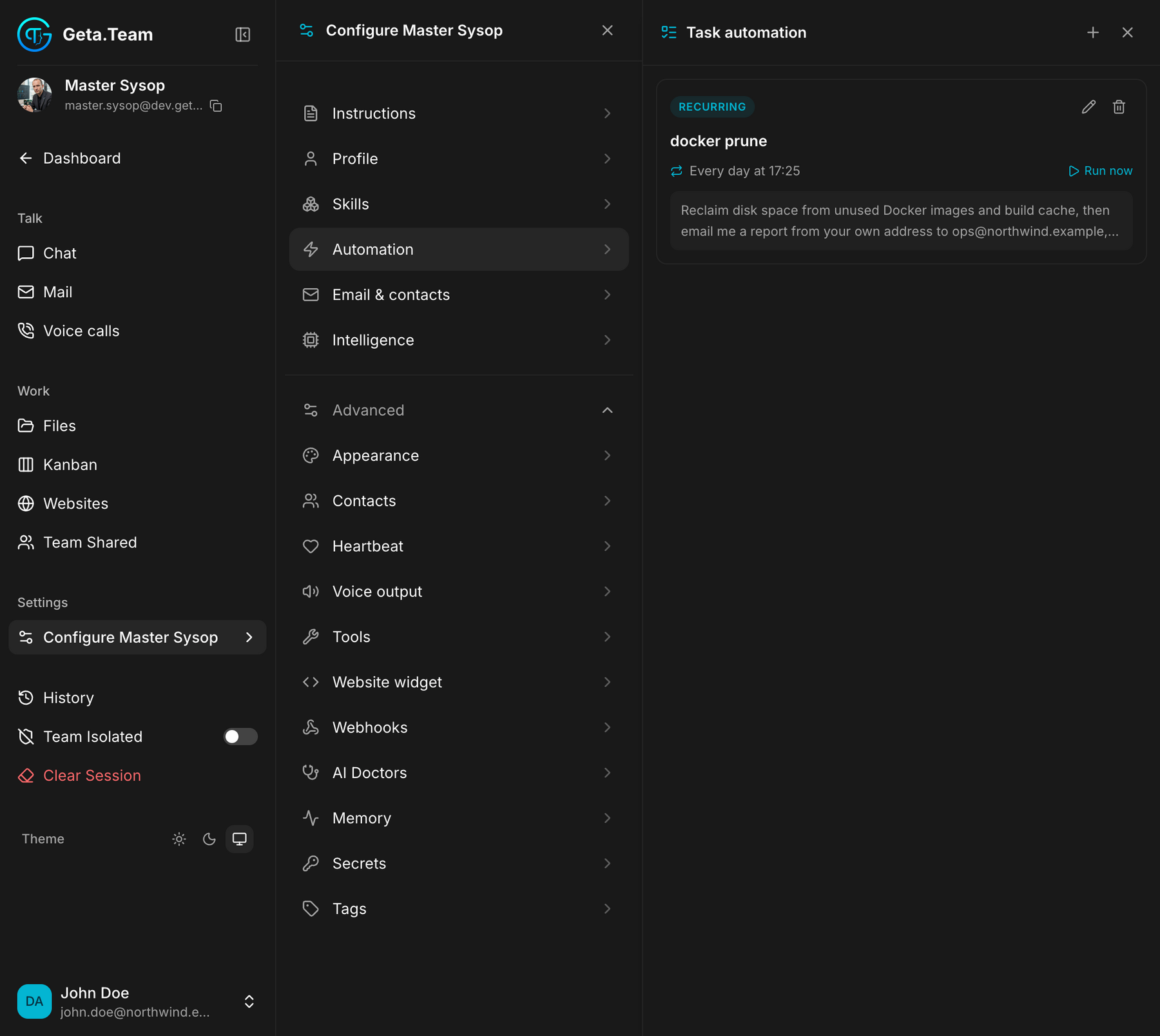
Each task shows a badge with its type: RECURRING above: then its name,
when it next runs, and the beginning of its brief. On the right: Run now,
to fire it immediately without waiting for the schedule, the way to check a
task does what you meant before leaving it alone.
Two ways to create one
Just ask. Tell the employee in the chat: "every morning at 8, check the backups and email me if anything failed". It creates the task itself, and it appears in this panel. This is the quickest route, and the one to use when the brief is easier to say than to write.
Or fill the form, with + at the top of the panel. Use this when you want to see exactly what was scheduled, or to write a long brief.
The form
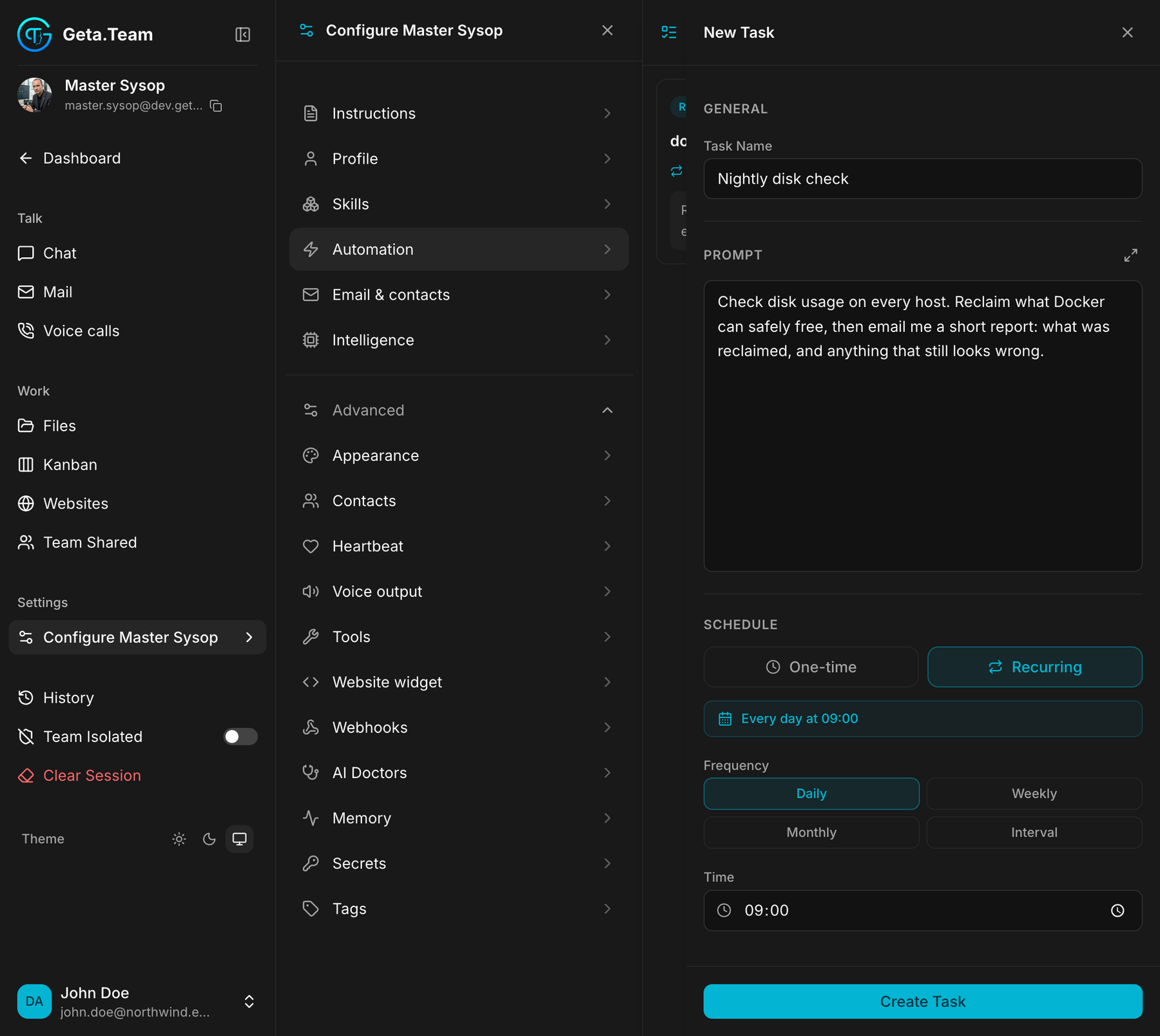
Task Name: for you, to find it again in the list.
Prompt, the prompt to send when task executes. This is the whole instruction, exactly as if you had typed it in the chat: the employee receives it and works from it. Write it in full, it runs with nobody there to clarify anything.
Schedule, One-time asks for a date and time and runs once. Recurring offers four frequencies:
| Frequency | What you set | Reads as |
|---|---|---|
| Daily | a time | Every day at 09:00 |
| Weekly | a time, and the days on a S M T W T F S row | Every Mon at 09:00 |
| Monthly | a time, and a day from 1st to 31st | 1st of each month at 09:00 |
| Interval | a number, in minutes or hours | Every 5 minutes, all day, every day |
The line in blue above the frequency always spells out what you just built - read it before saving, it is faster than re-checking the fields.
Interval is the one to handle with care. It fires all day and all night; at five minutes, that is nearly 300 runs a day, each one a real conversation with its own credit cost.
Editing a task
The pencil on a task reopens the same form, filled in: change the brief, the frequency or the time, and save. Nothing is lost, the task keeps running on the new schedule.
Pause task stops a task for a while without losing anything: its name, brief and schedule stay as they are. A paused task stays in the list, dimmed, with a Paused badge, and the scheduler skips it until you press Resume task. Run now still works on a paused task. The pause button is in the chat and on the employee's edit pages, and your employee can pause and resume its own tasks when you ask.
A paused one-time task survives its own date. If you resume it after that date, the employee tells you it has been dropped rather than silently doing nothing.
The bin deletes the task for good.
The default
No tasks. An employee does nothing on its own until one exists, or until Heartbeat is enabled.
What breaks
A scheduled task runs with the skills and permissions the employee has that day. Remove a skill it relied on and the task keeps firing, failing quietly at the same time every morning.