
MCP connections
Connect an employee to MCP servers from the catalog or by URL, including servers that sign in with OAuth in one click.
Where
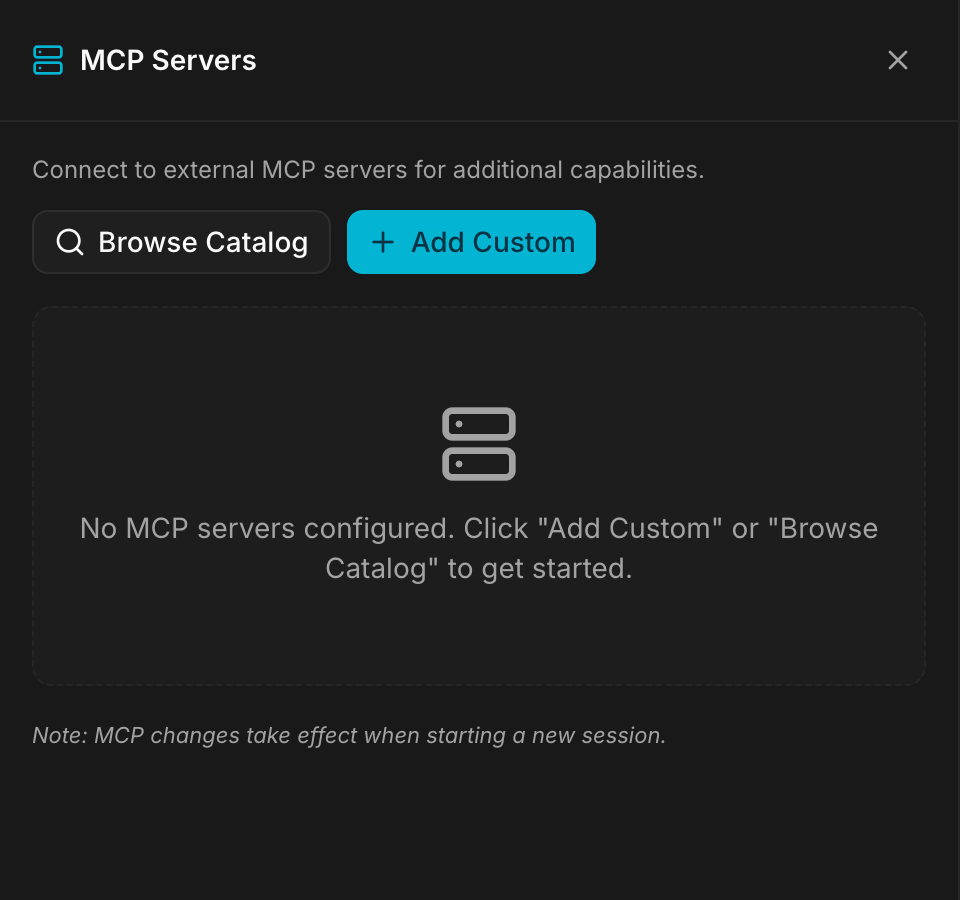
Configure ‹employee› → MCP connections: the MCP Servers panel, with Browse Catalog and Add Custom.
What it does
An MCP server gives the employee new tools from another service: read and write Notion pages, create Linear issues, query a database, trigger an automation. Each employee has its own list of servers.
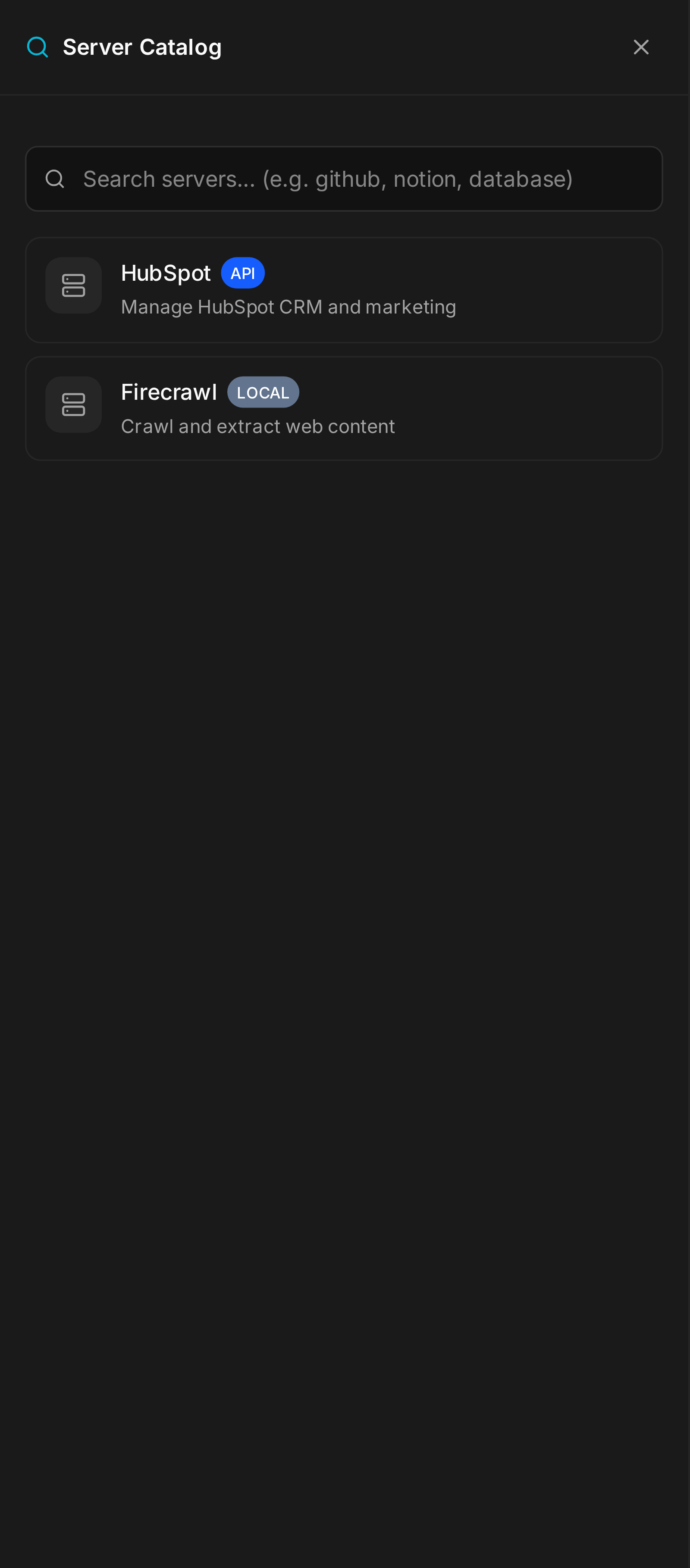
The MCP Server Catalog offers ready-made entries, each with a one-line description: Notion, Linear, Slack, HubSpot, Stripe, Airtable, Supabase, Neon, Sentry, PostHog, Metabase, monday.com, Wrike, Todoist, Xero, Zapier, Make, Dify, Firecrawl, Playwright, Hugging Face, Fireflies, tl;dv and more. You can also add any server by its URL.
Servers that sign in with OAuth
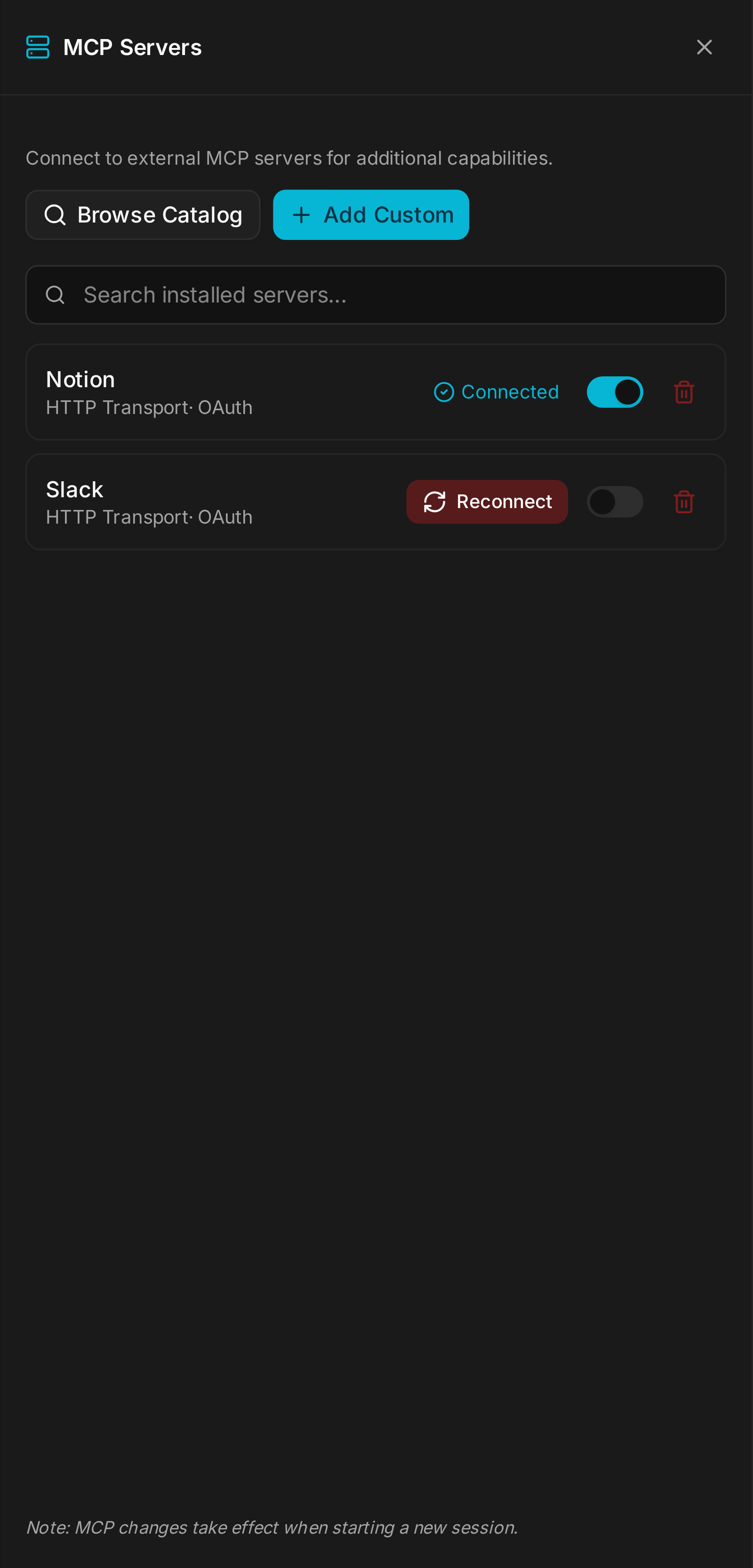
Since v3.0.0, employees can use MCP servers that authenticate with OAuth, such as Notion, Linear, Elestio, and any server that follows the MCP authorization specification. Add the server's URL, click Connect, sign in in the pop-up (Waiting for login...), and the server turns Connected. There is no app to register by hand. Clicking Connected signs in again, with another account if you want; Reconnect appears only when the sign-in has expired or failed.
The tokens are stored encrypted on the server and never reach the employee's workspace: they are added on the way out, only when the server is actually used.
The default
No server. Once a server is added or connected, start a new session (‹name› connected. Start a new session to use it.); Restart to apply reloads the chat on its own.
What breaks
- Allow pop-ups for this site: the OAuth sign-in opens in a pop-up, and a blocked pop-up means no connection.
- An exported employee keeps its MCP servers, but servers using OAuth must be connected again after import; MCP keys travel in clear in the archive.