
Chat
The conversation window, switching employee, voice dictation, copying, backgrounds, the context gauge and compacting.
Where
Employee sidebar → Talk → Chat. It is also what the Chat button on an employee card opens.

What it does
A normal conversation, with two differences worth knowing.
It is not only your messages. Anything the employee is told from elsewhere surfaces here: cards created or moved on its kanban board, tasks handed over by Nova, notifications from its channels. The chat is the employee's inbox for everything, not just for you.
The employee shows its work. When it runs a tool, the step appears in the thread, collapsed, so you can open it and see what was actually executed rather than trusting a summary.
The composer
Along the bottom: attach a file, reopen a past exchange, insert an emoji, and speak instead of typing. On the right, two indicators:
- the context gauge, a percentage, see below;
- the model tier the employee is running on,
MaxorMediumfor example, which you can change here without going into its settings.
The percentage here is not your credits. Credits are shown on the employee's own dashboard, as Credits used with the balance left. This one is about the conversation itself.
The context gauge
Hover it and it reads, for example, Context: 6k / 262k tokens (2%).
It is how full the current conversation is. Everything in the session counts: your messages, the employee's answers, the tools it ran and what they returned. It fills up on its own as the work goes on, and a long tool output can move it several points at once.
It only appears once a session has real usage. A new session, or one that has just been compacted, shows nothing.
| Level | What you see | What it means |
|---|---|---|
| under 50% | grey | nothing to do |
| 50% and over | amber, plus a compact button | act at your convenience |
| 85% and over | red | act now |
Compacting
From 50% onwards, a small compact icon appears next to the gauge. It asks for confirmation first, Compact this conversation?, and explains what it does:
Compacting summarizes everything so far into a shorter form, freeing up room so your employee can keep working without losing track of the task. It runs right away and may take a few seconds.
Compacting is the right move in the middle of a task: the employee keeps going, with the thread rewritten as a summary.
Compact, or save and clear?
Left alone, a conversation fills to the top and gets compacted anyway. That works, but a summary is a summary: the detail behind it is gone, and each compaction summarises the previous summary.
Between two tasks, the cleaner move is to save and clear. Ask the employee to write down what matters: a file, a note in its memory, a card on its kanban, then use Clear Session. The gauge goes back to zero and the next task starts on a clean thread rather than on a digest of the last one.
Rule of thumb:
- mid-task, gauge going amber → compact, and carry on;
- task finished → have the employee save what matters, then clear.
Switching employee
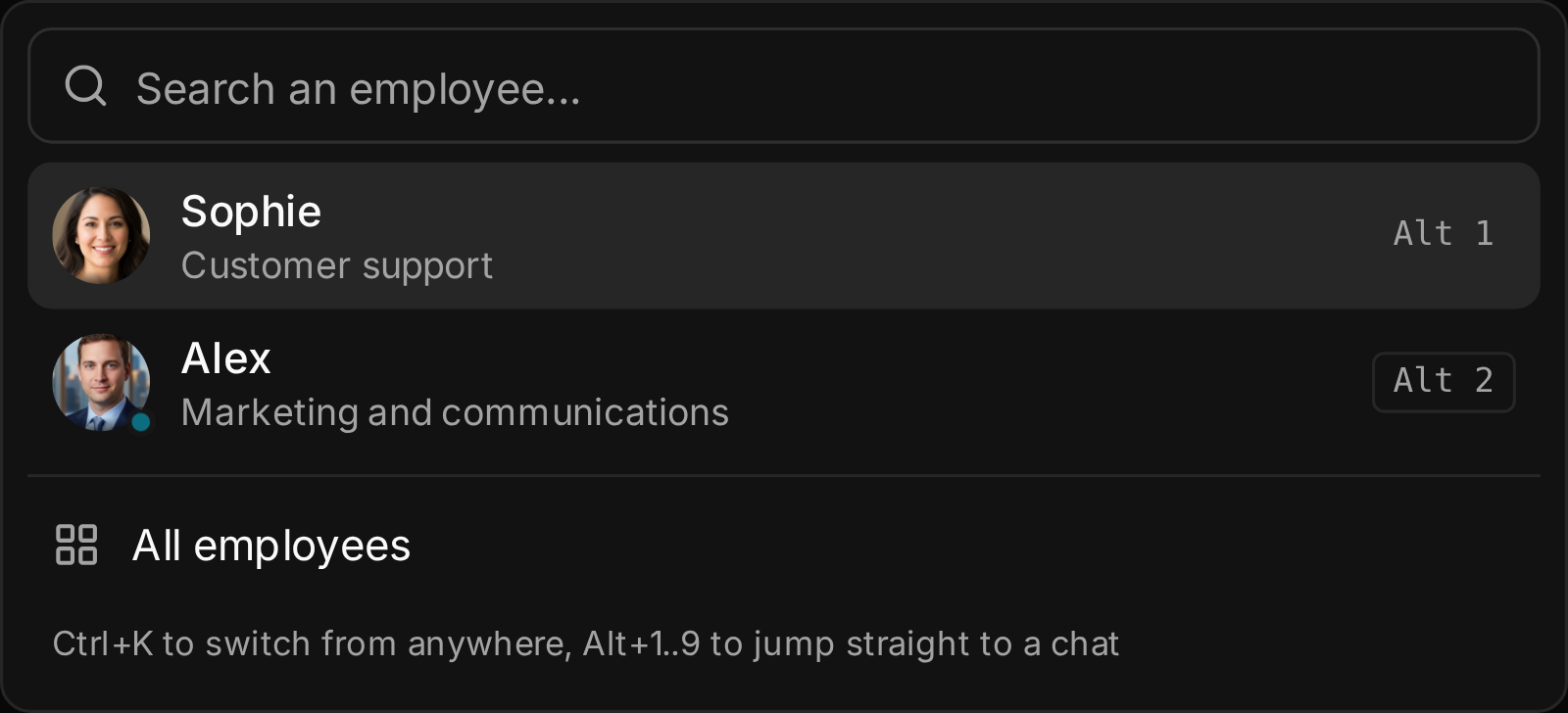
Click the employee's photo and name at the top of the chat sidebar: the Switch employee list opens: a Search an employee... field, your most recent chats on top, each with its shortcut (Alt 1, Alt 2…), and All employees at the bottom. A small pulsing dot marks the employees that are working right now.
From anywhere in the app, Ctrl+K (Cmd+K on Mac) opens the same list, and Alt+1 to Alt+9 jump straight to your first nine employees. On a phone, tap the employee's name.
Voice dictation
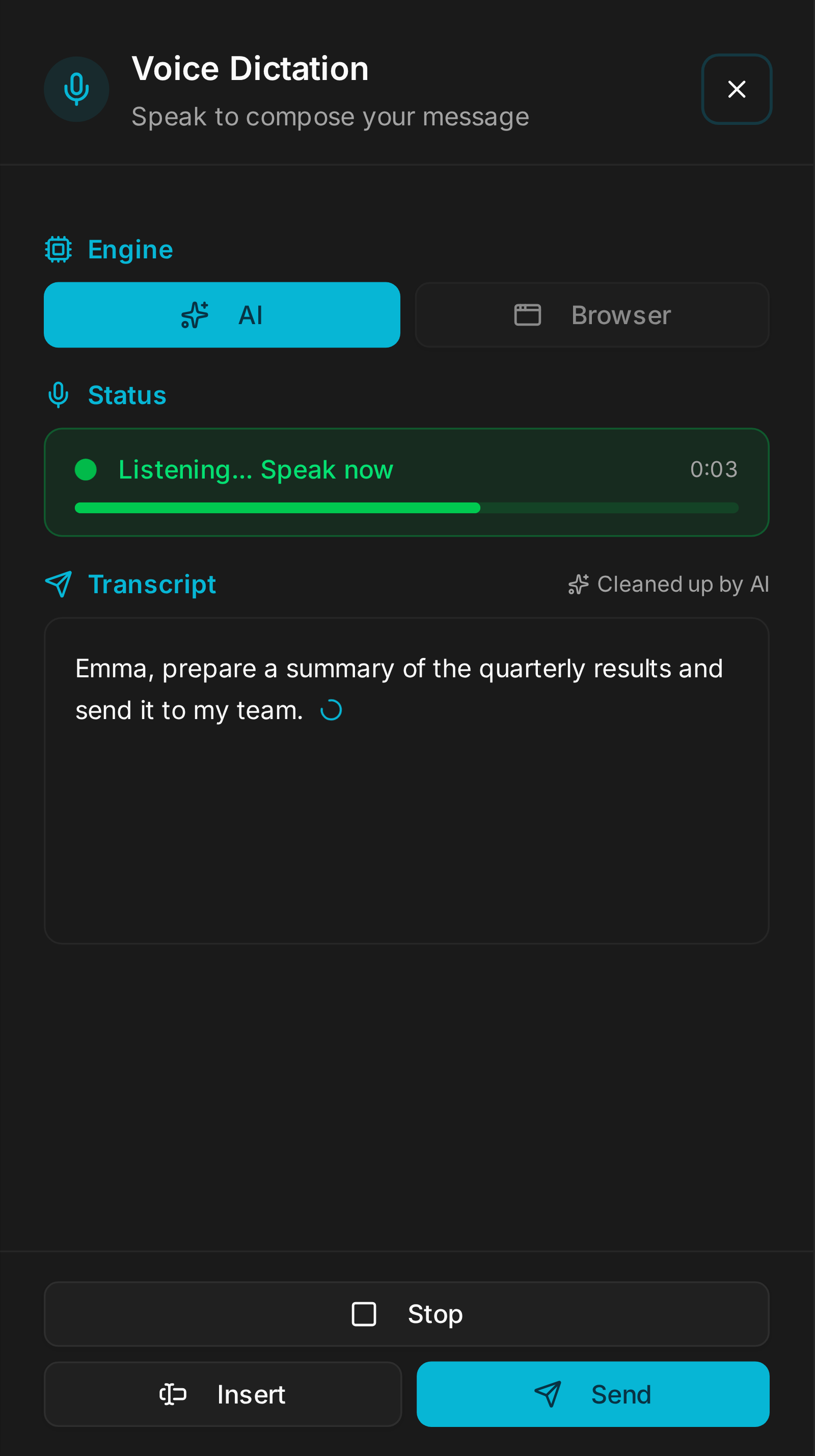
The microphone in the composer opens Voice dictation. Speak: each phrase is transcribed as soon as you pause and appears about two seconds later, with punctuation, capitals, and product names and people's names spelled the way you said them. There is no language to choose; it detects what you speak, including several languages in one message. A level bar and a timer show that it hears you. Insert puts the text in the composer, Send sends it; both wait for the last phrase to land.
It works in every browser with a microphone, Firefox included, and costs roughly half a cent per minute of dictation, on your instance's Gemini key. It uses an AI voice detector, so background noise is not sent to be transcribed and sentences that were never said do not appear.
Engine: AI (the default) or Browser, which is free and instant and keeps its own Language selector. With an OpenRouter key on the instance, dictation uses ElevenLabs Scribe v2, like meetings.
Copying a message
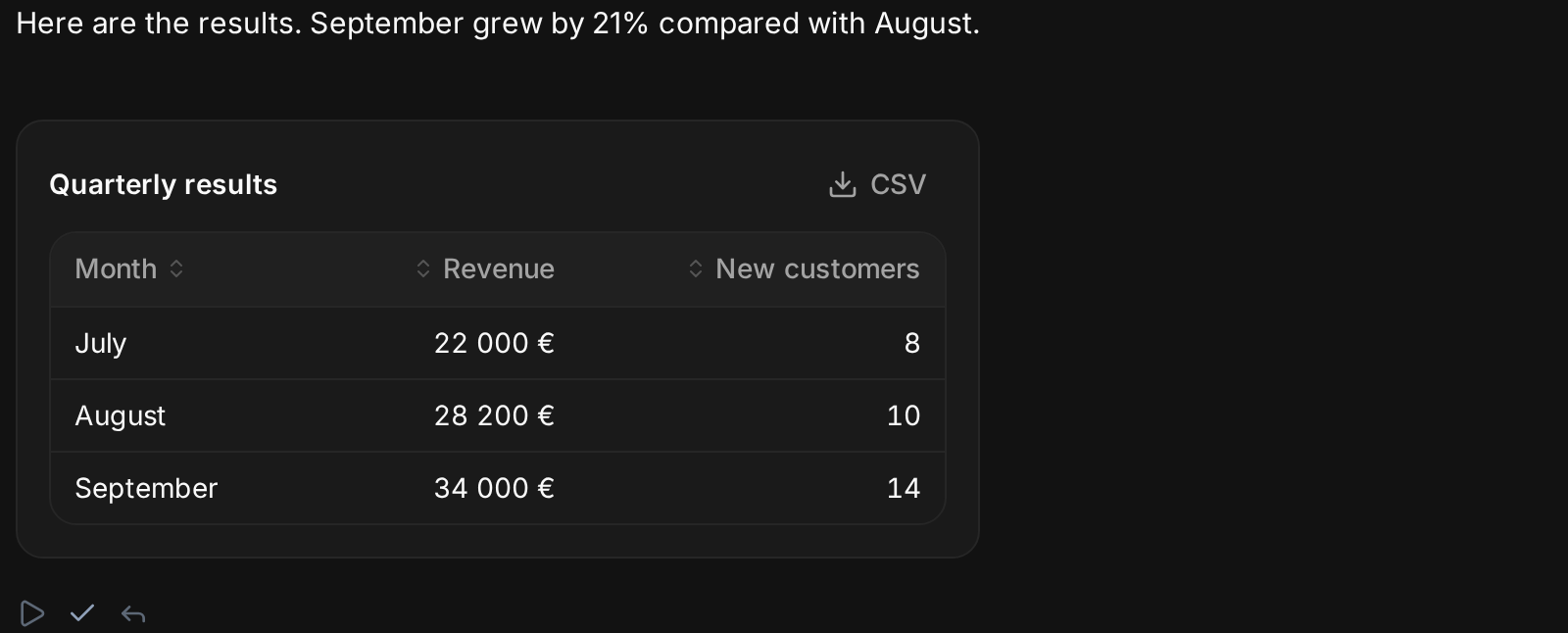
Copy, under a message, copies it as it looks: paste into Gmail, Google Docs, Word or Notion and tables stay tables, with headings, bold, lists, links, quotes and code blocks. Paste where only plain text is accepted and you get clean text with no markdown symbols; tables arrive tab-separated, so they drop into Excel or Google Sheets as columns.
Chat background and themes
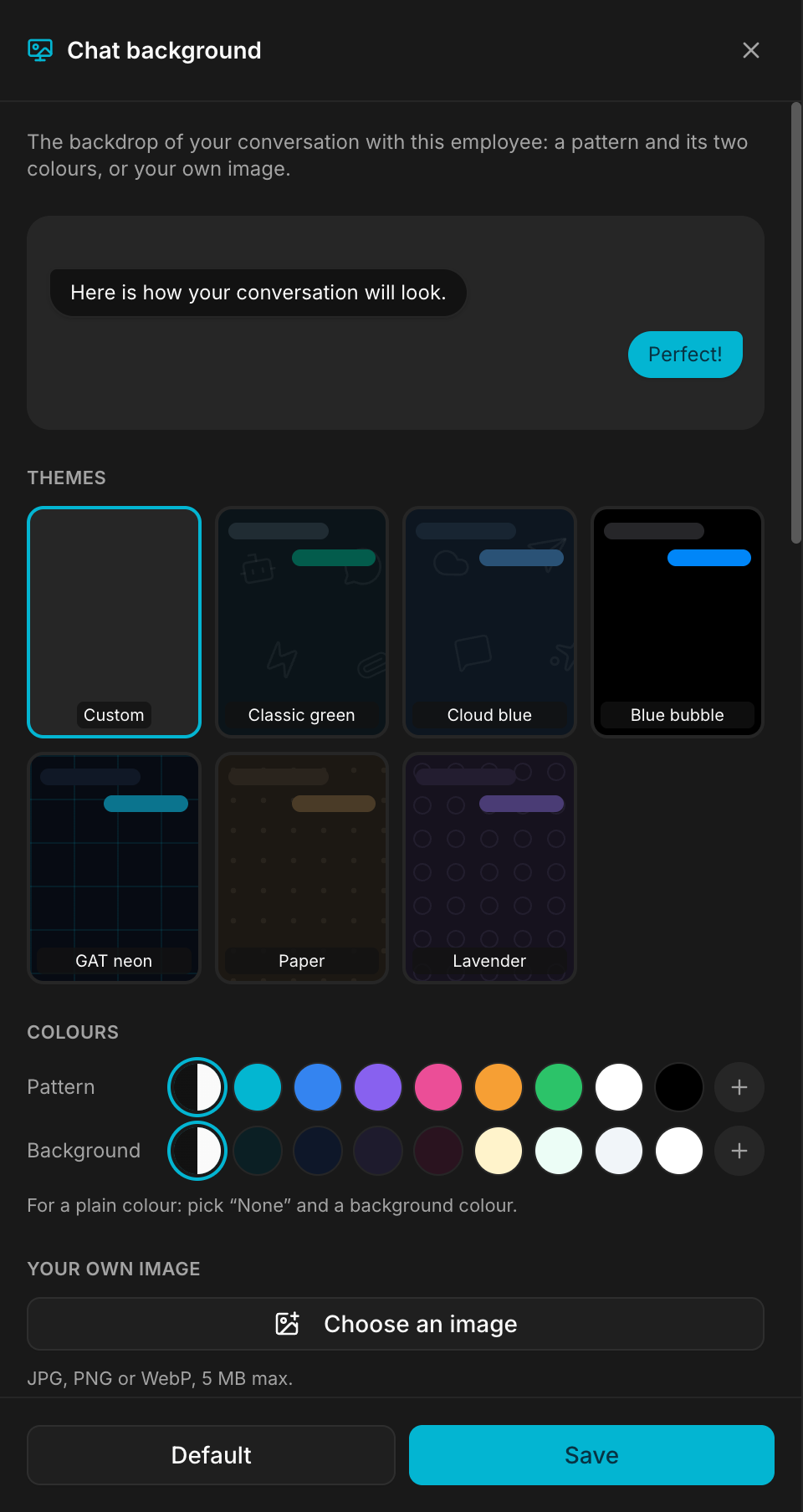
Configure ‹employee› → Chat background sets the backdrop of the conversation:
- Themes: Classic green, Cloud blue, Blue bubble, GAT neon, Paper and Lavender, each in light and dark. A theme sets the bubble colours and a background in one go; you can still change the background afterwards.
- Pattern: dots, waves, honeycomb, asanoha, terrazzo and many more, each with its own Colours (or Automatic, which follows the theme). For a plain colour, pick None and a background colour.
- Your own image: JPG, PNG or WebP, 5 MB max, with Intensity and Blur sliders.
The conversation behind the panel previews every click; close without saving and the previous background comes back. Default resets it.
The owner chooses. Everyone who can open the employee, colleagues it is shared with and admins who do not own it, sees the owner's background and theme, read-only. Over a background, messages sit on frosted glass, with your own messages tinted with the interface colour. Theme, pattern and colours travel with the employee when you export it; an uploaded image stays behind.
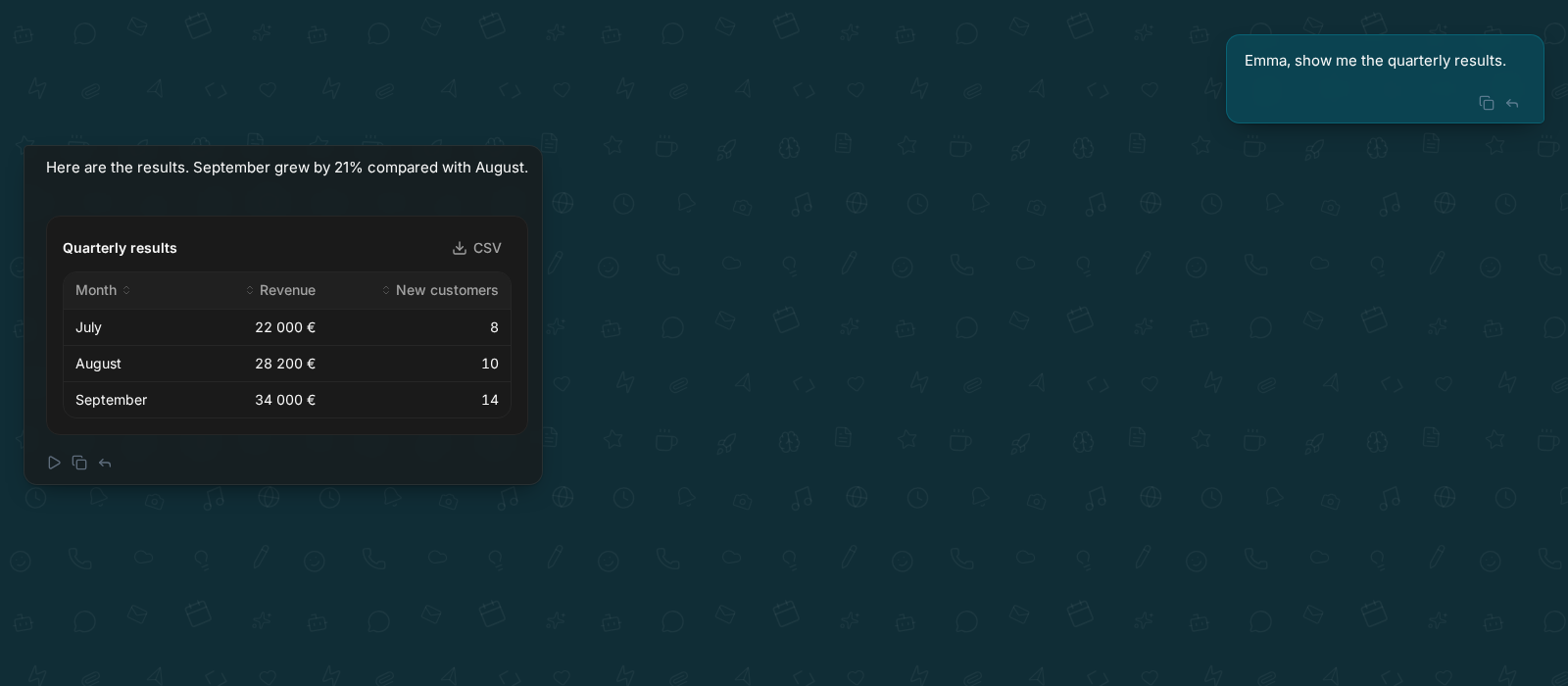
The default
A new employee starts with an empty conversation and no memory of you. What you tell it in the first exchange is what it will work from, so state who your company is and what you expect once, rather than repeating it.