
Answers with an interface
Charts, tables, forms and buttons right in the chat, widgets that keep themselves up to date, and interfaces sent as images.
Where
In the employee's chat, as an answer. Pinned interfaces live in the Widgets panel of the chat sidebar (Interfaces they keep up to date).
What it does
When a chart or a table is clearer than a paragraph, the employee builds one in its answer: bar, line, area and donut charts, key figures, sortable tables, forms, cards, buttons, progress bars, timelines, calendars, gauges, world maps, image galleries, a small kanban and before/after comparisons. Everything follows the Geta.Team look, in light and dark mode, on desktop and mobile, with your instance colours. While it works, the chat shows Building the interface....
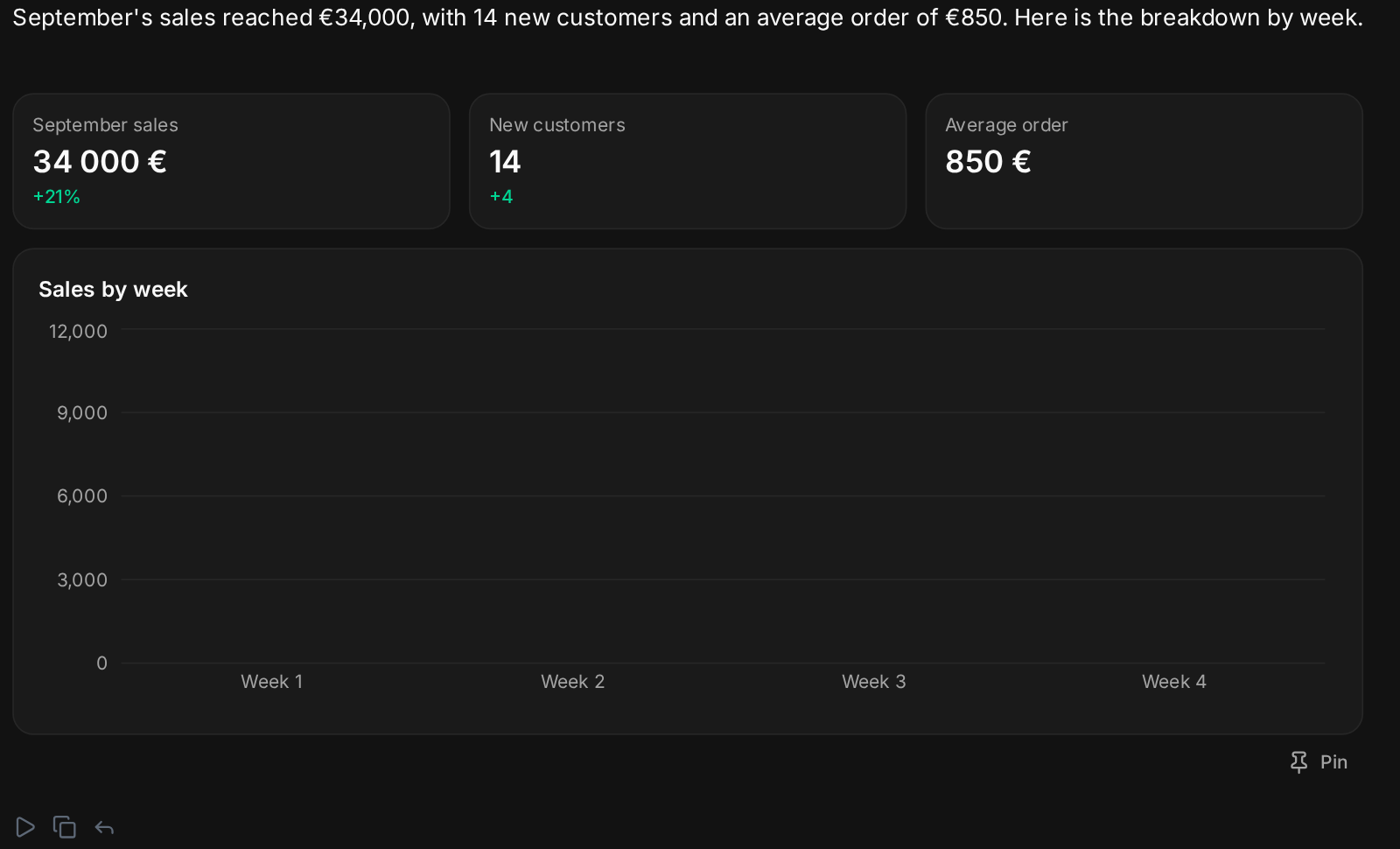
These interfaces are interactive. When you fill in a form, press a button on a card or pick a row in a table, the employee receives it as an ordinary message and carries on from there. A few patterns come up all the time:
| Pattern | What you see |
|---|---|
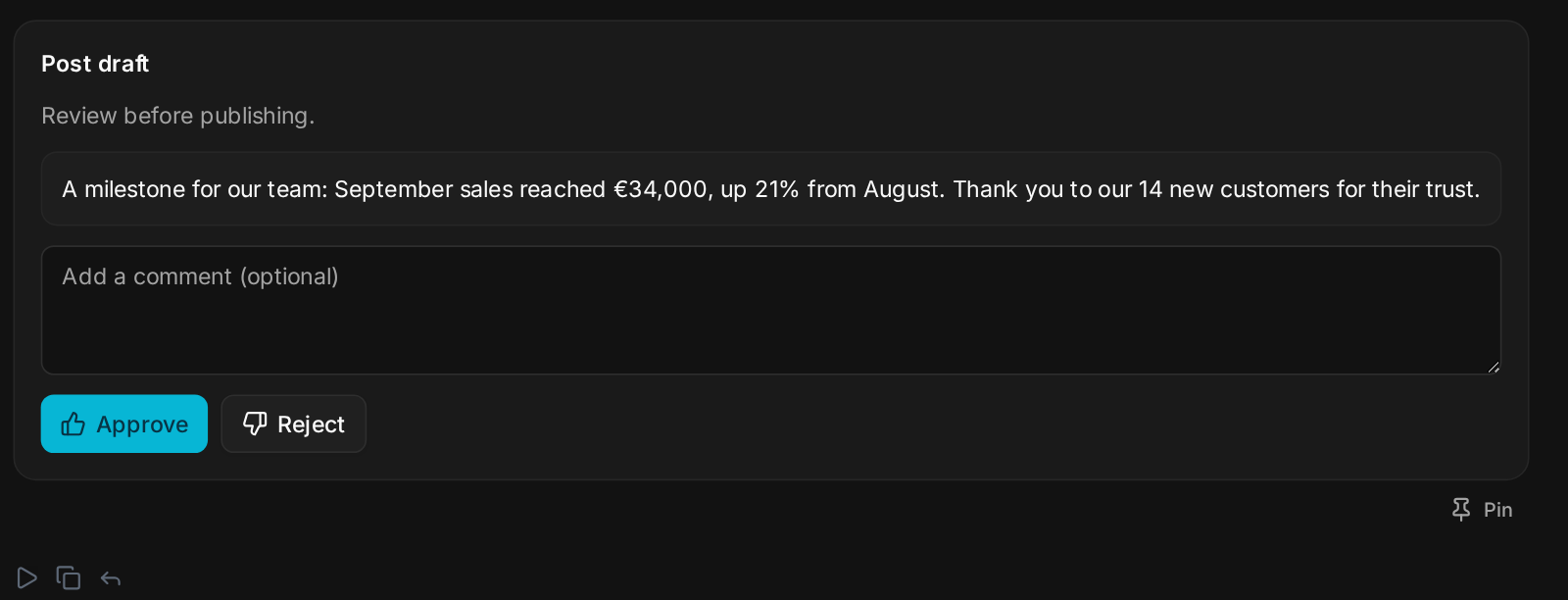
| Approve or reject | Before sending a post, an email or a quote, the employee shows you the draft with Approve and Reject and room for a Comment. It acts on your decision. |
| Forms with files | A form can ask for a file (Choose a file, 5 MB max), which reaches the employee like a normal chat attachment. |
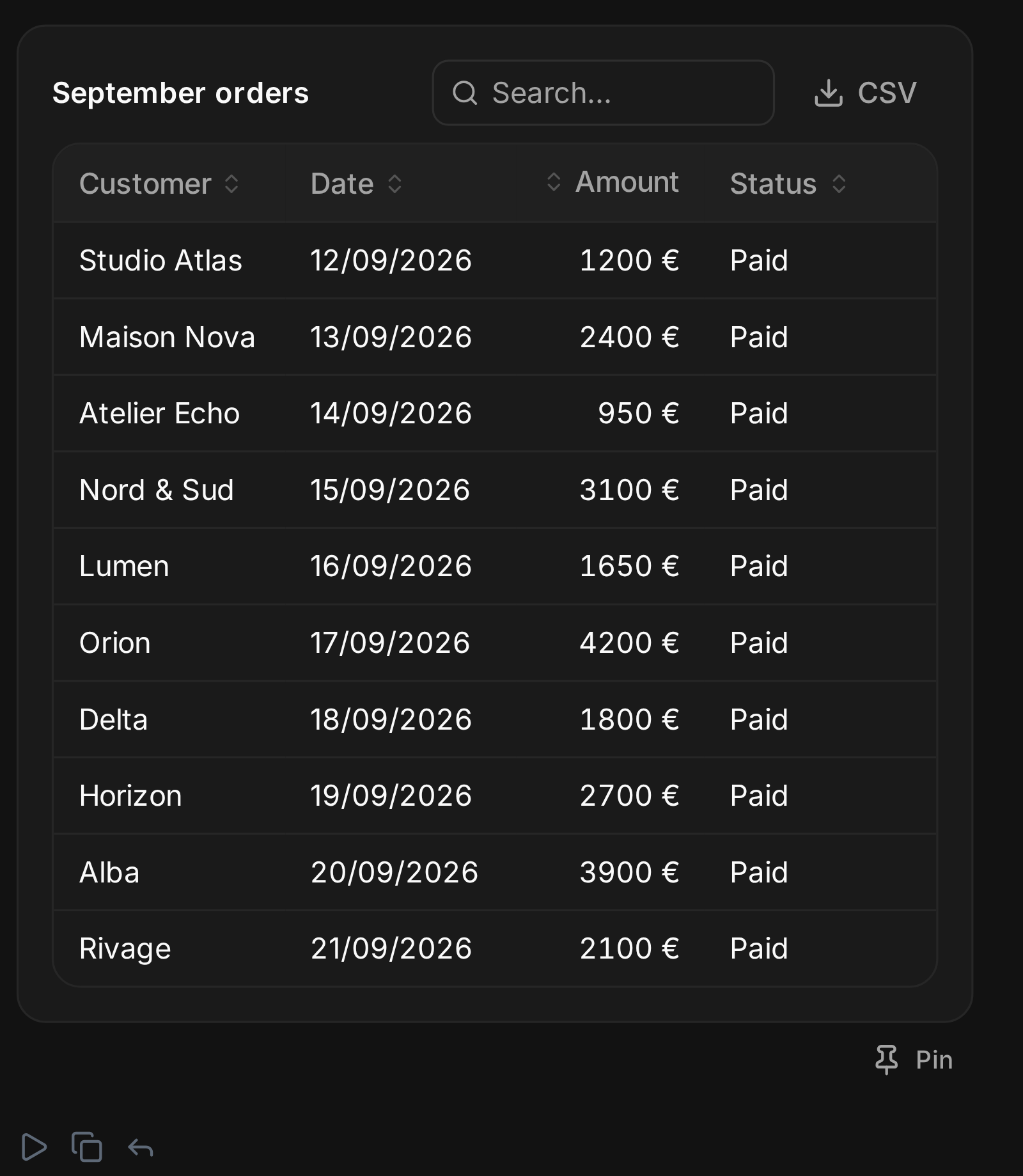
| Tables you can work with | Every table can be sorted by any column, searched (Search...) when it gets long, and Export as CSV. |
| Choices | Cards with a Choose button: the employee continues with the option you picked. |
Widgets
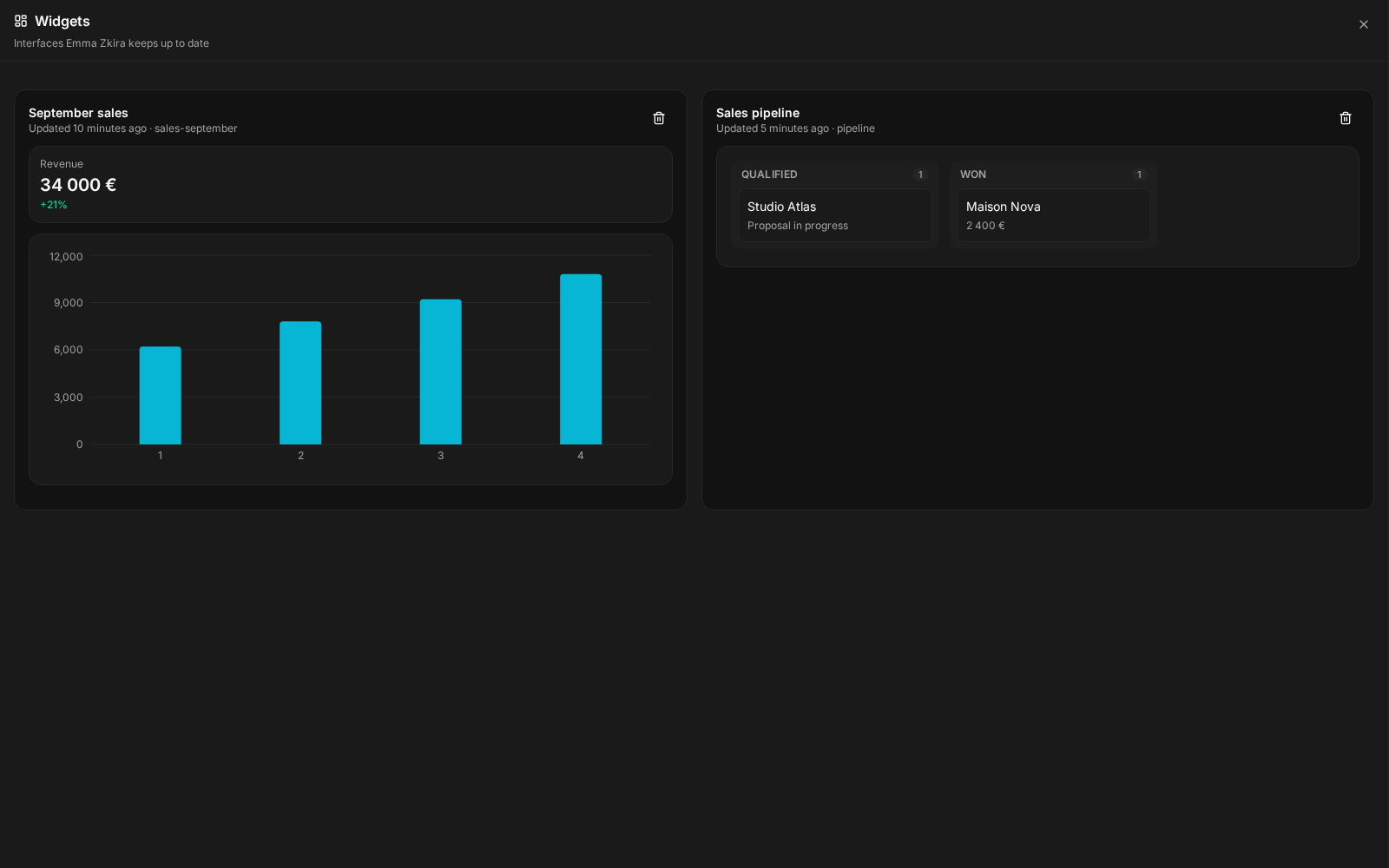
Press Pin under any interface and it moves to the Widgets panel. Your employee can create and update widgets itself too: ask for a pipeline summary every morning and it refreshes on schedule, live, with no need to reload the page. Each widget shows when it was last Updated. Remove takes it off the panel.
Outside the chat
An employee can turn any interface into a clean image and send it on WhatsApp, Telegram, Slack or by email. A Monday chart can reach your phone without anyone opening a dashboard. In meetings, the same interfaces are presented on the big screen.
The default
The gat-ui skill is on by default for new employees. Existing employees get it with a skills resync, or you can add it from Available Skills.
What breaks
- An interface that cannot be displayed reads This interface could not be displayed, with Ask to fix it: the employee sends a corrected version.
- An employee created before v3.1.7 answers in plain text until it gets the gat-ui skill.