
Mobile App
The Android app: your employees, your messages and your calls on your phone.
Where to get it
- Android: Geta.Team – AI Employees on Google Play.
- iPhone: the app is coming to the App Store. Until then, open your workspace in Safari and add it to your home screen (see Notifications).
Sign in
Enter your workspace address, then sign in with the account you already use on the web. With several workspaces, you switch from one to another without signing out.
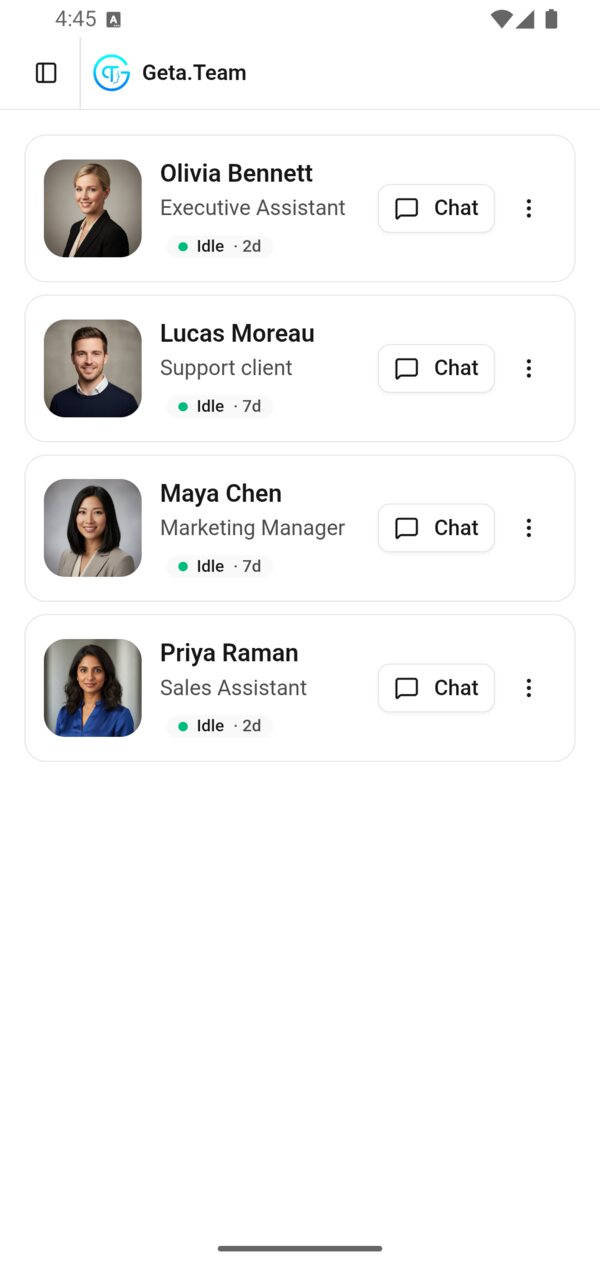
Your employees, your conversations and your files are the same as on your computer. For push notifications, see Notifications.
Calls and meetings
Before the call: Join
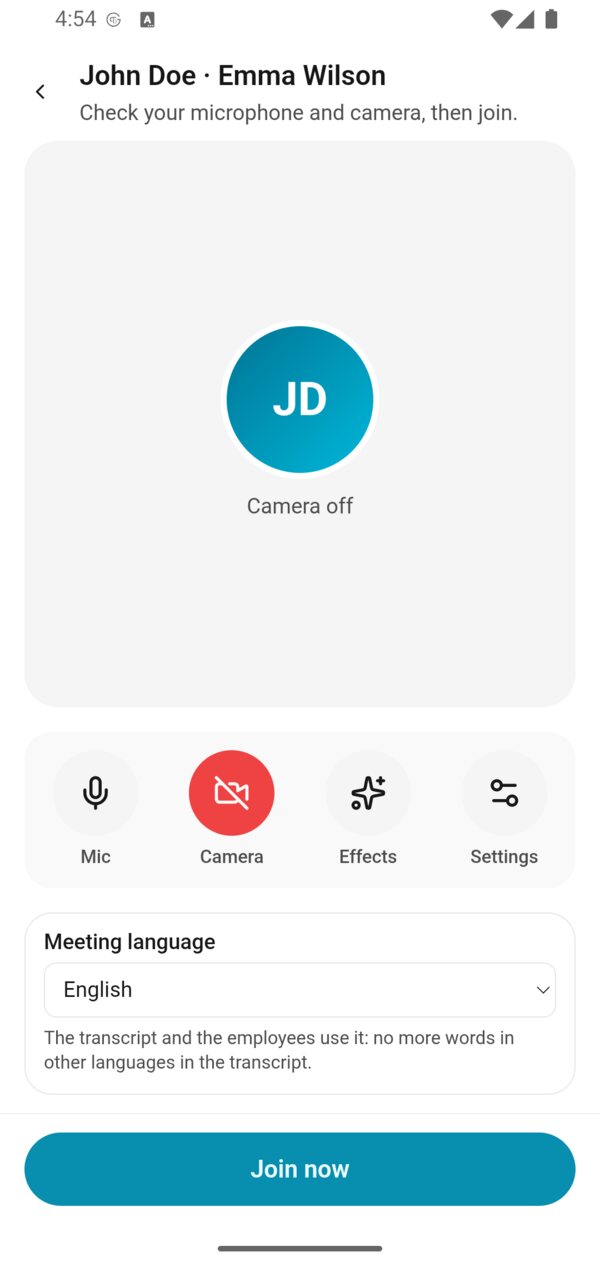
The first time you join a call on a phone, the Join screen (Check your microphone and camera, then join.) shows your camera, the Mic, Camera, Effects and Settings buttons, and the Meeting language. Tap Join now.
It only shows once per device: your next calls start straight away.
During the call
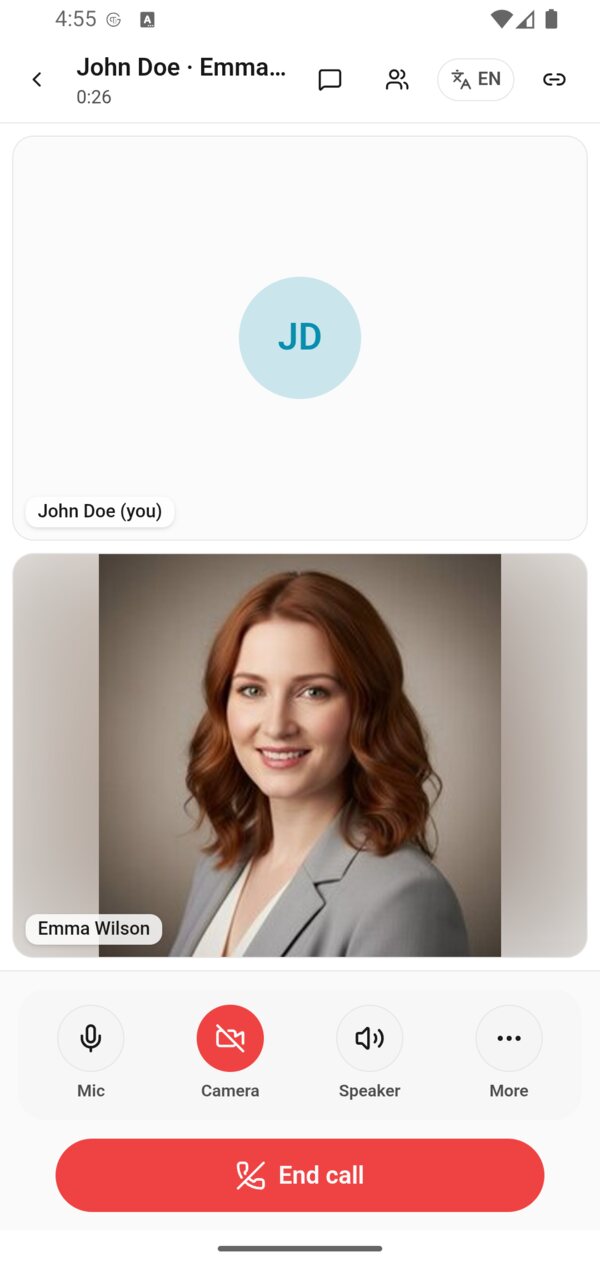
- At the top: the back arrow (it shrinks the call, which keeps going), the call duration, then the conversation, the participants and the language.
- At the bottom: Mic, Camera, Speaker, More, and the red End call button.
More
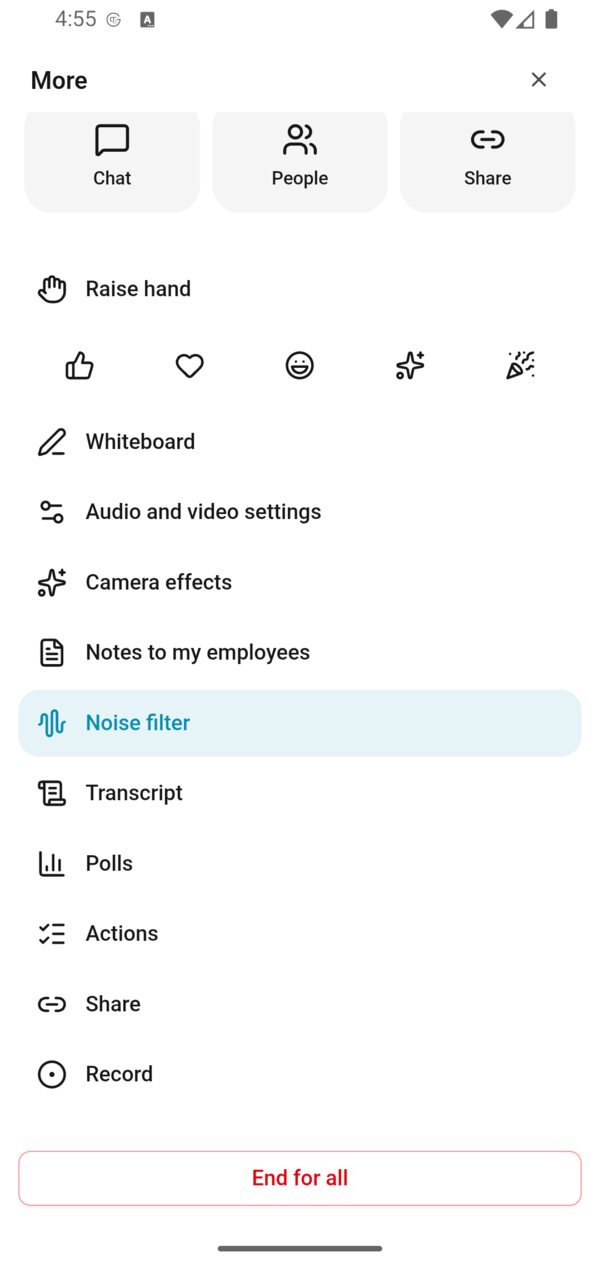
More gathers everything else: Chat, People, Share, Raise hand, reactions, Whiteboard, Audio and video settings, Camera effects, Notes to my employees, Noise filter, Transcript, Polls, Actions, Share, Record, and End for all.
Notes to your employees
At the start of a meeting, you choose the AI employees who get its notes: after the meeting, the summary, the decisions and the actions land in their chat. You can keep this choice for all your meetings.
Keep using the app
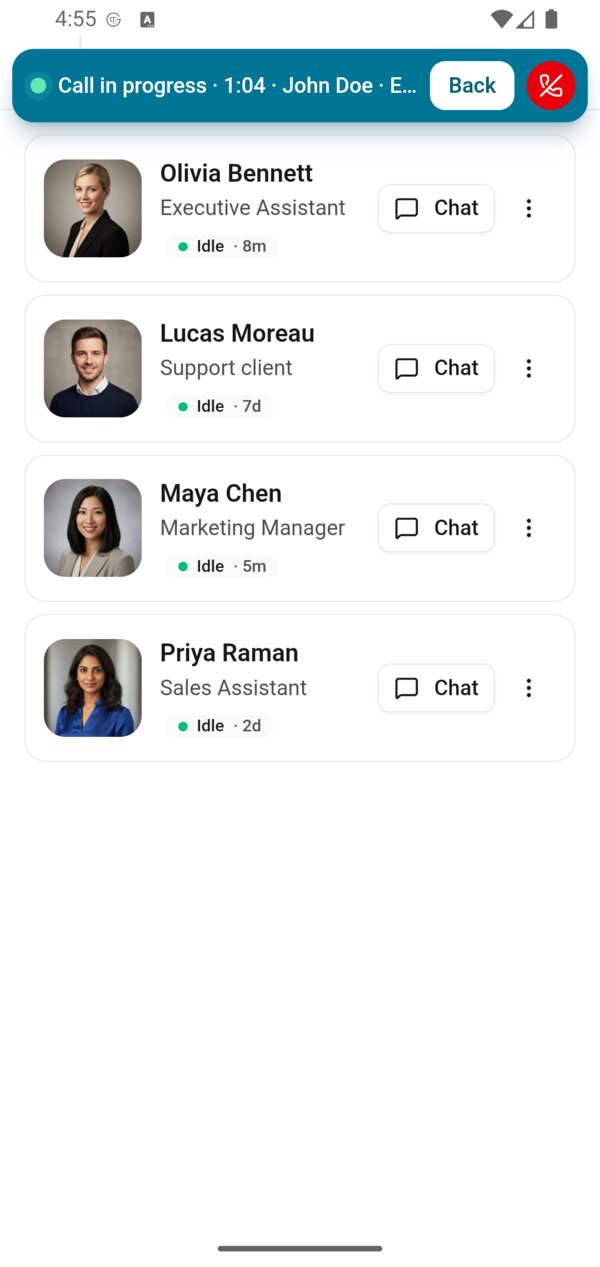
The call goes on while you use the rest of the app: a bar at the top shows Call in progress, the duration, Back to return to it, and a button to hang up.
With the phone locked
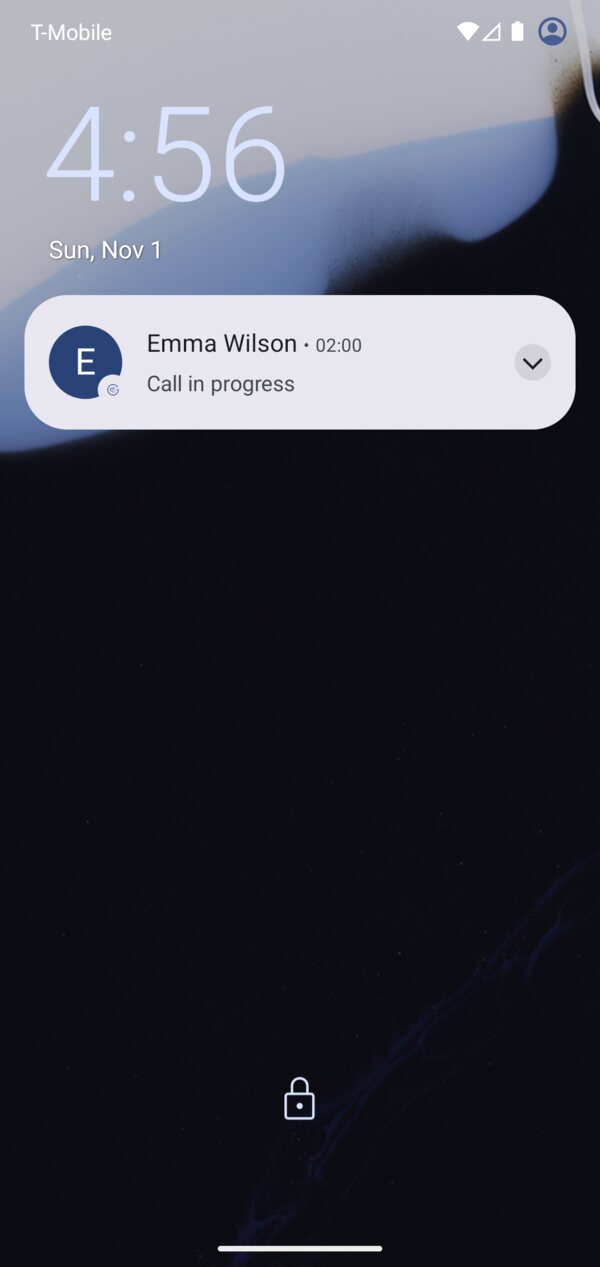
An ongoing call shows on the lock screen, with the name and the duration. On Android 16, a call chip also shows in the status bar. Incoming calls ring full screen, even with the phone locked.
To create, plan and run meetings, see Meetings.