
Workspaces
Lifecycle, overview, settings, networking, credentials, and deletion of a workspace.
A workspace is one deployed Geta.Team instance. Each workspace runs on its own dedicated server in EU or US.
Lifecycle
A workspace moves through these states:
| Status | Meaning |
|---|---|
pending | Created, waiting for provisioning to start |
provisioning | Server is being built |
running | Ready to use |
stopped / suspended | Paused (e.g. failed payment) |
expired / deleted | Subscription cancelled, server removed |
error / deletion_failed | Something went wrong, contact support |
Overview
The landing tab: what the workspace costs, what it has consumed, and how to get into it.

At the top sit the workspace name, its plan and its region, with Open my workspace to go straight in. Server actions groups the four machine controls, Update now, Restart, Reset and Power off, with the running state on its left. The panel carries its own warning: Reset and Power off interrupt your workspace. Your AI employees stop answering until it is back.
Three cards:
Access your workspace: the workspace address, the username, and the password behind an eye icon. Each field has a copy button. See Access credentials.
Credits: what is left this month, what has been used, and the share of the allowance. The bar is the quickest read on the page, and Add credits buys a one-off pack without changing plan.
Billing: start date, next renewal, status, and Change Plan. The
renewal date is the one to note: credits reset then, and an unpaid renewal is
what moves a workspace to suspended.
Reset and Power off are not the same thing at all. Power off stops the server, and you start it again. Reset is destructive, treat it like the Danger Zone, not like a restart.
Usage Logs
Every request your employees made, most recent first, with a count at the top (38 requests below).
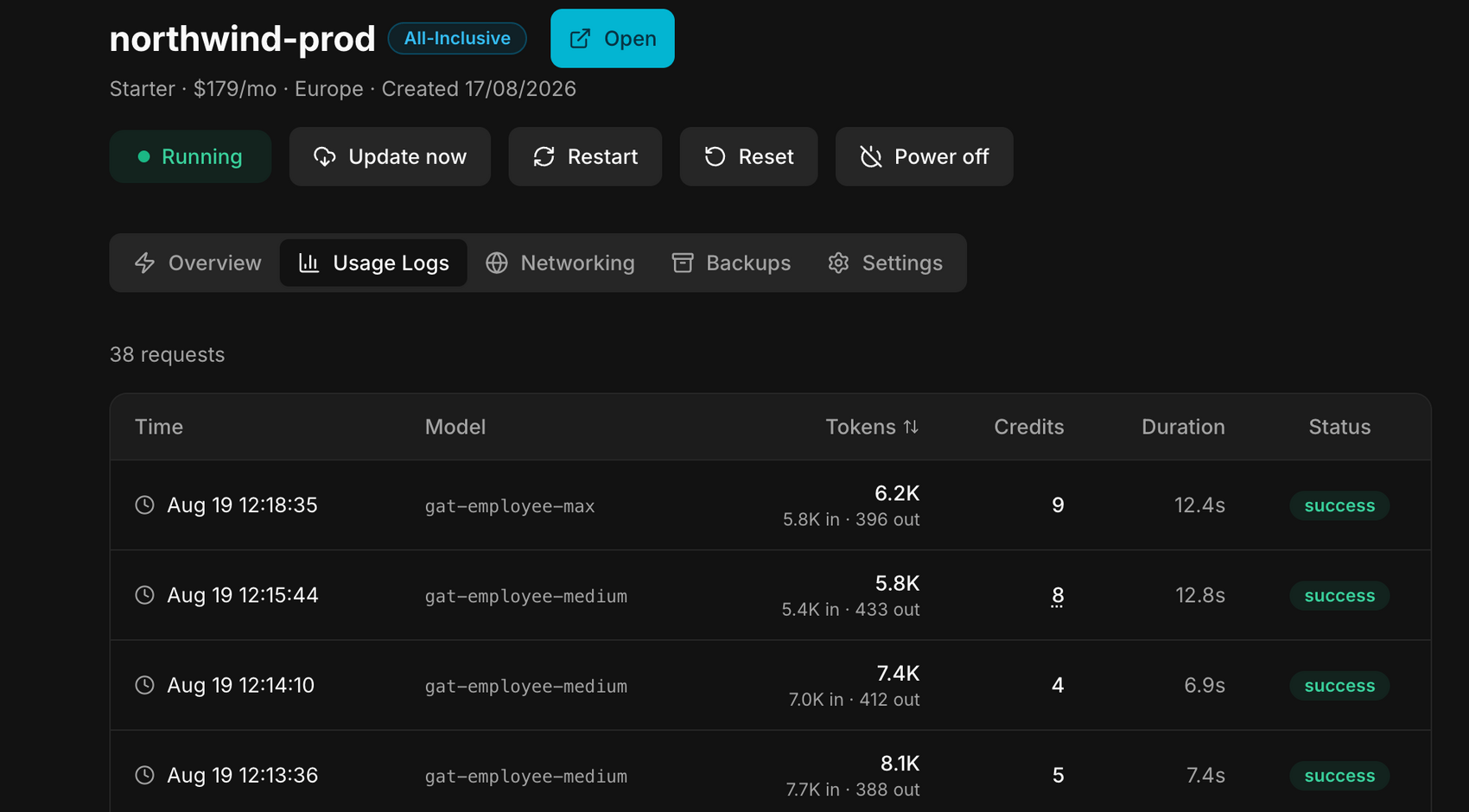
Six columns:
| Column | What it tells you |
|---|---|
| Time | when the request ran |
| Model | which tier answered: gat-employee-mini, -standard, -medium, -max |
| Tokens | the size of the exchange, with the detail in · out |
| Credits | what it cost you |
| Duration | how long it took |
| Status | success, or an error if the request failed |
Read the Model and Credits columns together. A -max request costs several
times a -mini one for the same work. If a line surprises you, it is usually
an employee left on a tier higher than its job needs, that is changed per
employee in Intelligence.
Tokens are the raw unit behind the credits: a long document sent for a short answer shows a big in and a small out. Useful to spot an employee re-reading the same large file on every request.
Networking
Five blocks, from the address of your server down to who may open a shell on it.
Network
The workspace's own IPv4 address, with a copy button. This is the address a custom domain will point to, and the one to give when someone asks to allow your server through their own firewall.

Firewall
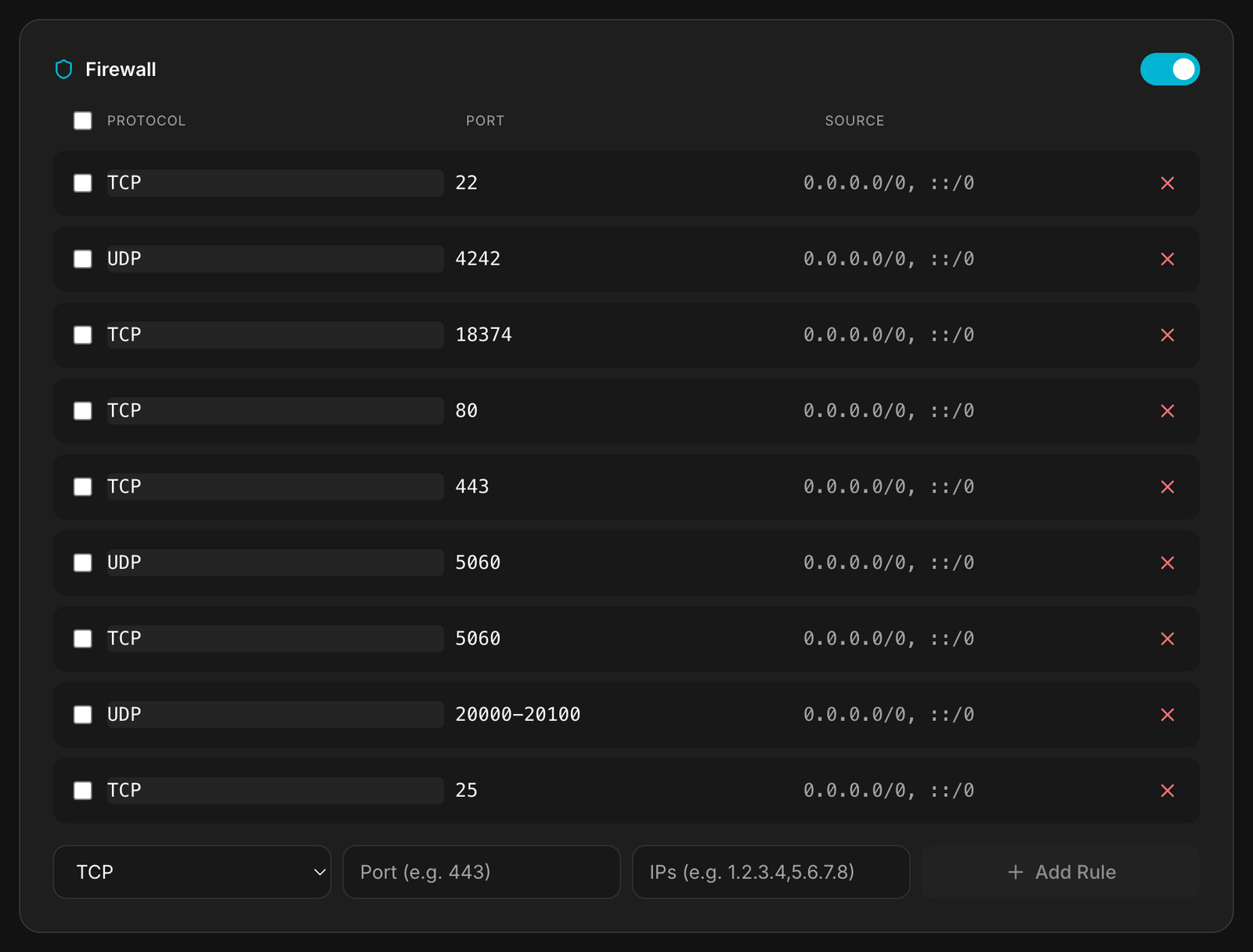
The rules that decide what can reach the server: protocol, port, source. Each line can be removed, and Add Rule takes a protocol (TCP, UDP or both), a port, and the IPs allowed.
The defaults cover what the platform needs to work: the web ports, mail, the
voice ports. 0.0.0.0/0, ::/0 in the source column means open to the whole
internet, which is what a public web port has to be.
This is the one screen where a wrong click has immediate consequences. Removing the rule on port 443 takes your workspace offline; removing port 22 locks you out of SSH. Restrict a source rather than delete a rule, and change one line at a time.
Custom Domains
Your workspace answers on its default address (…vm.elestio.app, marked
Active). To use your own, type it in the field and click Add.
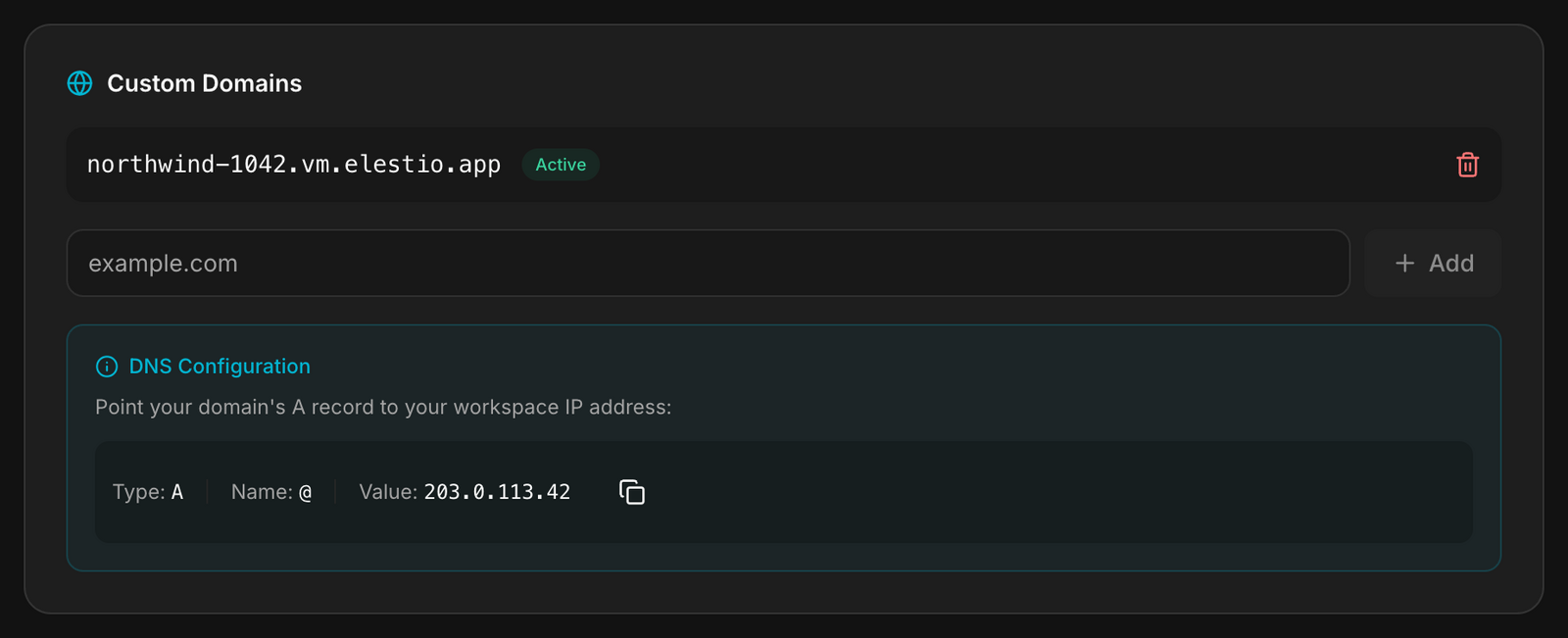
The panel then gives you the exact record to create at your registrar: an A
record, name @, value = your workspace IP. Not a CNAME, an A record
pointing at the address shown in the Network block above.
Propagation takes anything from a few minutes to a few hours. The domain shows as active once it resolves.
Email deliverability (PTR)
Sets the reverse DNS of your workspace IP.

When a mail server receives a message, it checks whether the sending IP resolves back to a real name. An address that answers nothing looks like a machine nobody claims, and the message is far more likely to land in spam. A PTR record is that reverse lookup: it maps your workspace IP back to a hostname you own.
Current shows the PTR in force. Type the hostname you want in Domain and click Update.
Point the domain at the workspace before you set the PTR. Create both records shown in the panel, an A record and an AAAA record, wait a couple of minutes for propagation, and only then submit. A domain that does not already resolve to the VM is refused.
Use a hostname dedicated to mail, such as mail.yourdomain.com, rather than
your main domain. The two records to create are given in the panel, with a copy
button on each.
SSH Keys
Public keys authorized to connect to this workspace's server over SSH (root).
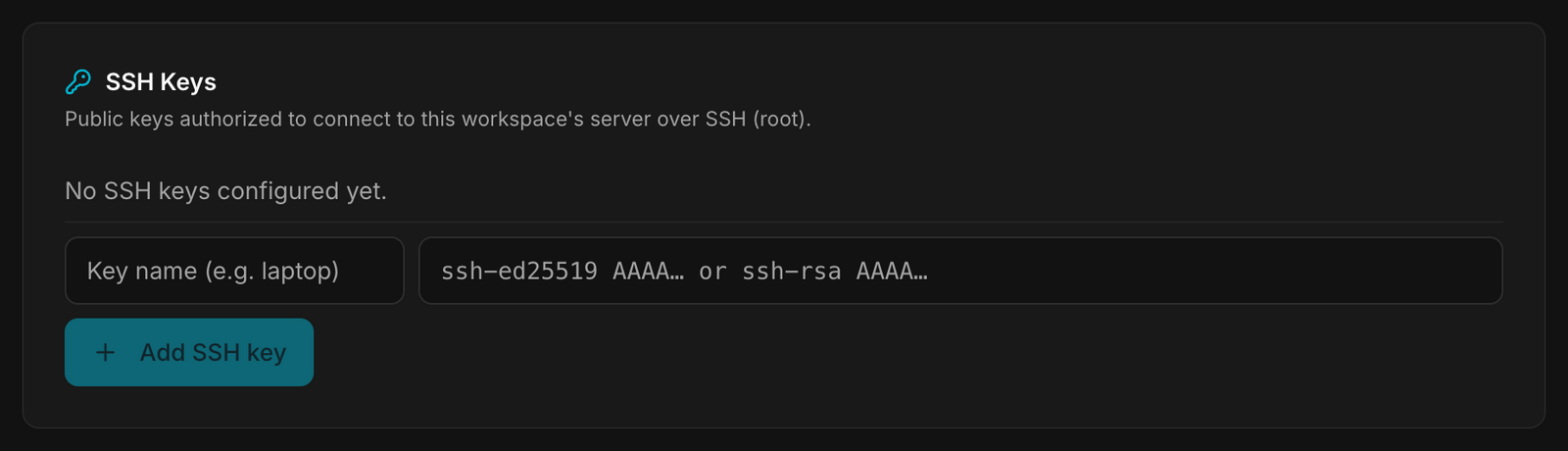
Add a key with a name (e.g. laptop) and the public key itself
(ssh-ed25519 AAAA… or ssh-rsa AAAA…).
A new workspace has none, and that is the right default: nobody reaches the server by shell until you decide otherwise. Add a key only if you have a reason to be on the machine, the platform itself never requires it.
Paste the public key, the one ending in .pub. A private key pasted here
would be a private key handed out.
Backups
One snapshot per day, taken automatically at 04:00, most recent first, with a count at the top.
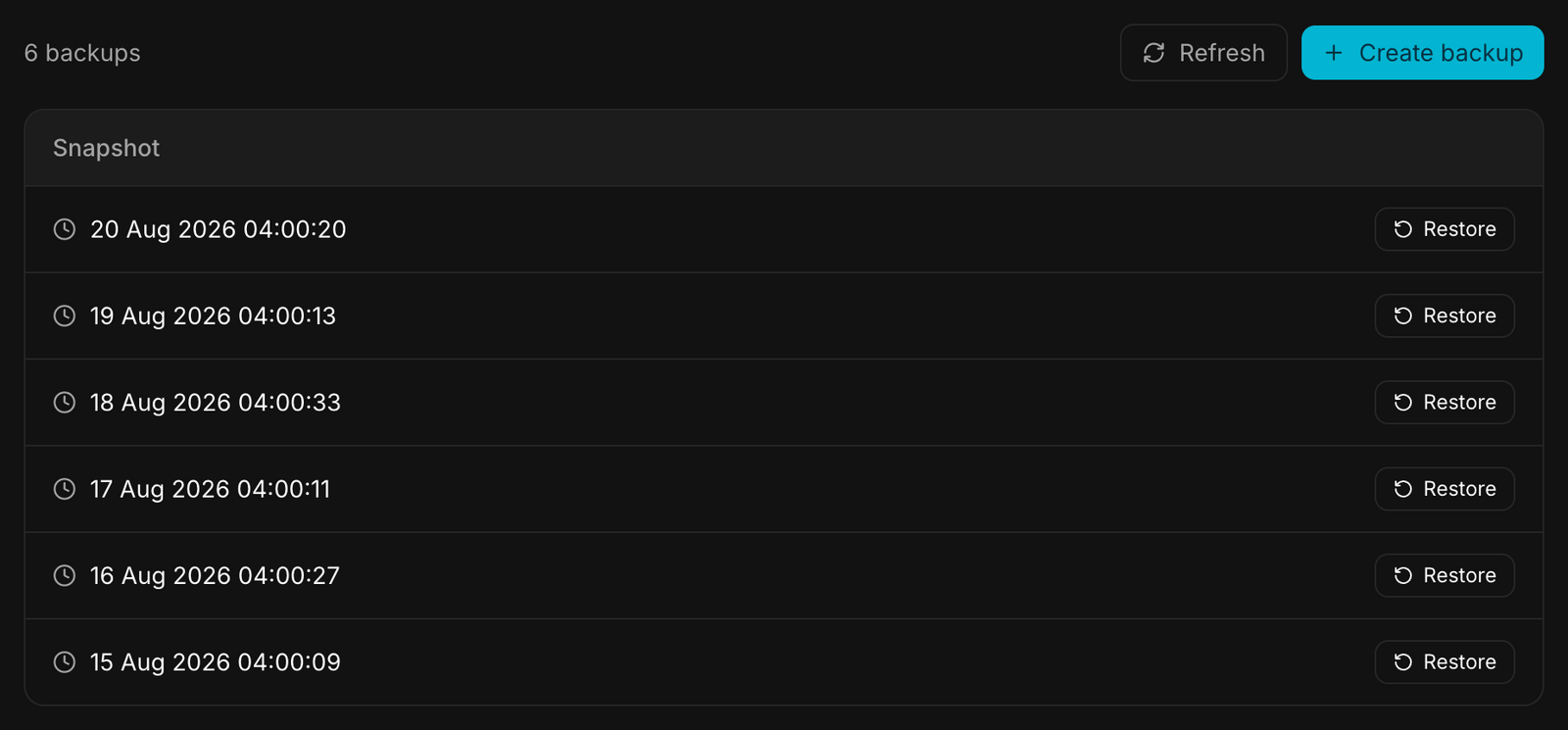
Restore on a line puts the workspace back to that snapshot. Create backup takes one immediately, which is what you do before a risky change, not after.
Worth opening once while everything is fine: the day you need it, you want to already know how far back the list goes.
Settings
The Settings tab is where you change the plan, manage the payment method, cancel, or permanently delete the workspace.
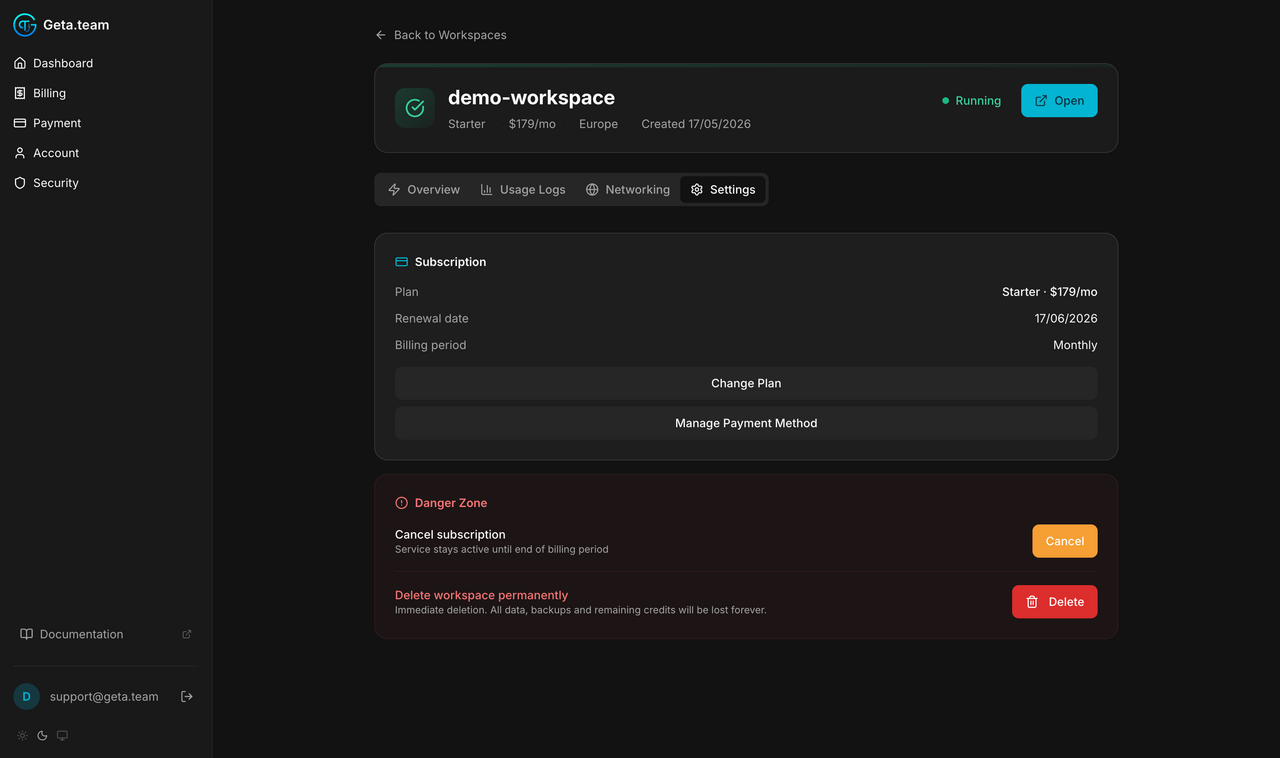
Access credentials
The card sits at the top of the Overview tab. The address and the username are readable straight away; only the password is hidden.

| Field | What it is |
|---|---|
| Workspace address | the address of your workspace |
| Username | the account that owns it, your own email |
| Password | generated at creation, click the eye to reveal it |
Each field has a copy button on its right.
This password is the admin account of your workspace: it opens everything inside, employees, files and settings included. Treat it like a server password, put it in your password manager, not in a shared document.
Delete a workspace
From Settings → Danger Zone, click Delete. You'll type the workspace name to confirm, deletion is immediate and permanent: billing stops, the server and all backups are destroyed, and any remaining credits are forfeited.
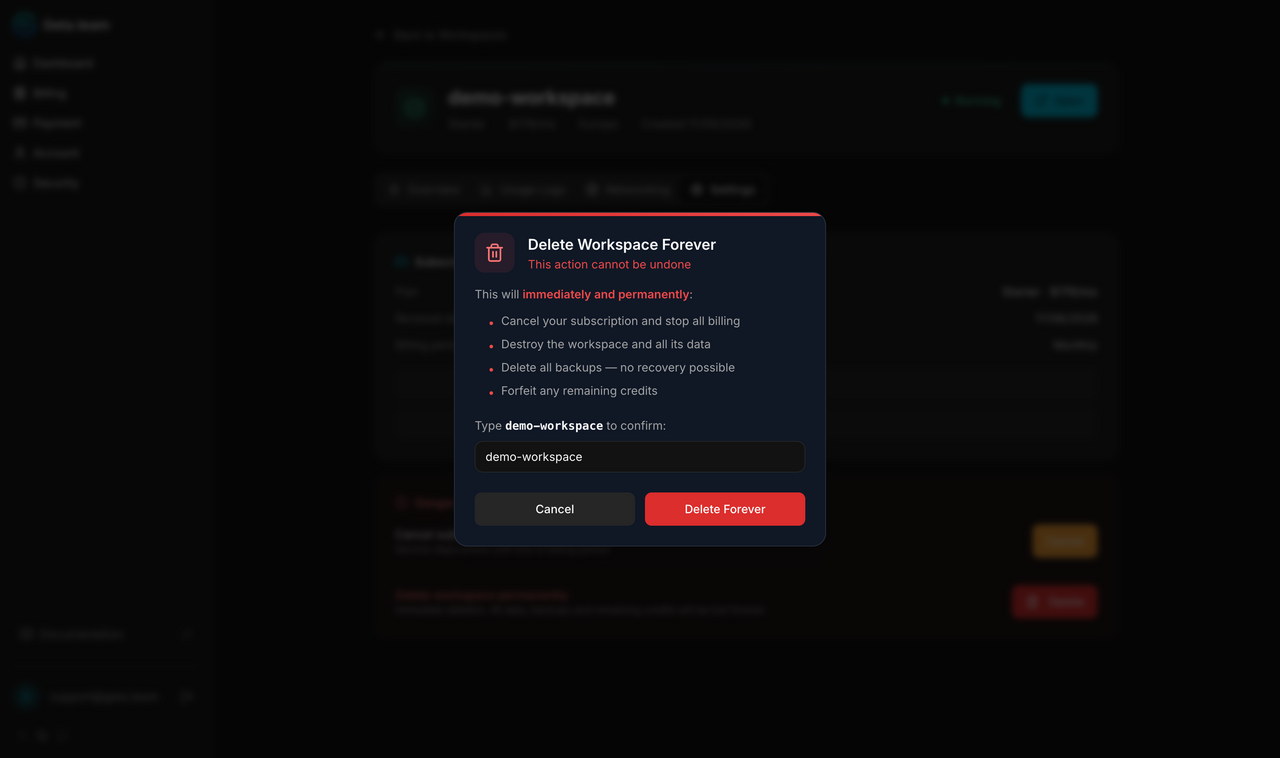
If the deletion fails on the infrastructure side, the workspace stays visible with a deletion_failed status. Contact support.