
Getting started
Sign in, create a workspace, and reach your first AI employee in five minutes.
You'll be in front of your first AI employee in about five minutes. There's no password to set, no infrastructure to wire up, no credit card surprise.
1. Sign in
Go to dash.geta.team and enter your email. You'll receive a magic link and a 6-digit code, whichever your inbox prefers.
Your session lasts 7 days. No password to manage.
2. Create a workspace
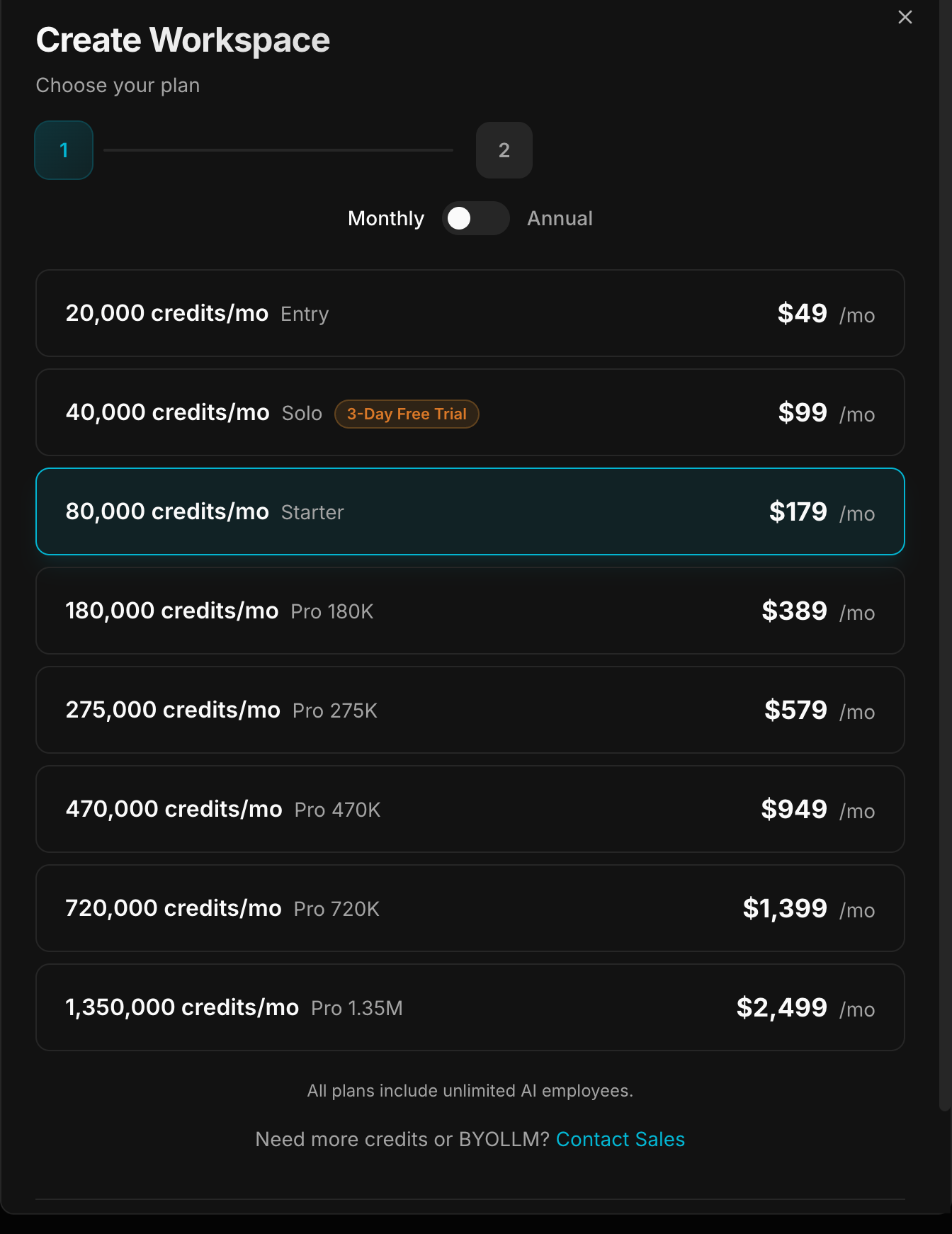
From the dashboard, click New Workspace, choose how you want to run it (BYOK, recommended, with your own LLM keys, or All-Inclusive, credits included), then pick:
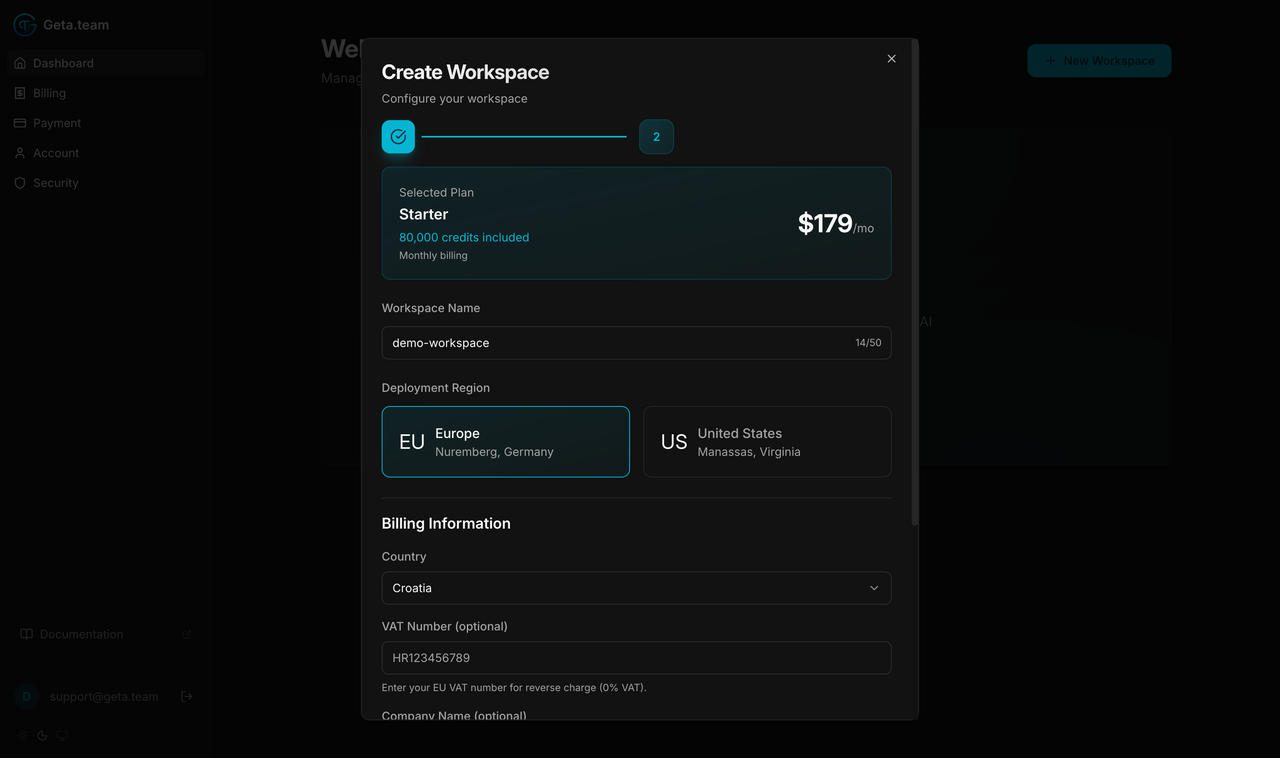
- A name, 3 to 50 characters, lowercase letters, digits, hyphens
- A region: Europe (Nuremberg, Germany), Europe (Paris, France) or United States (Manassas, Virginia). Paris costs a little more, see Plans & billing
- A plan, see Plans & billing for the full price list
3. Pay with Stripe
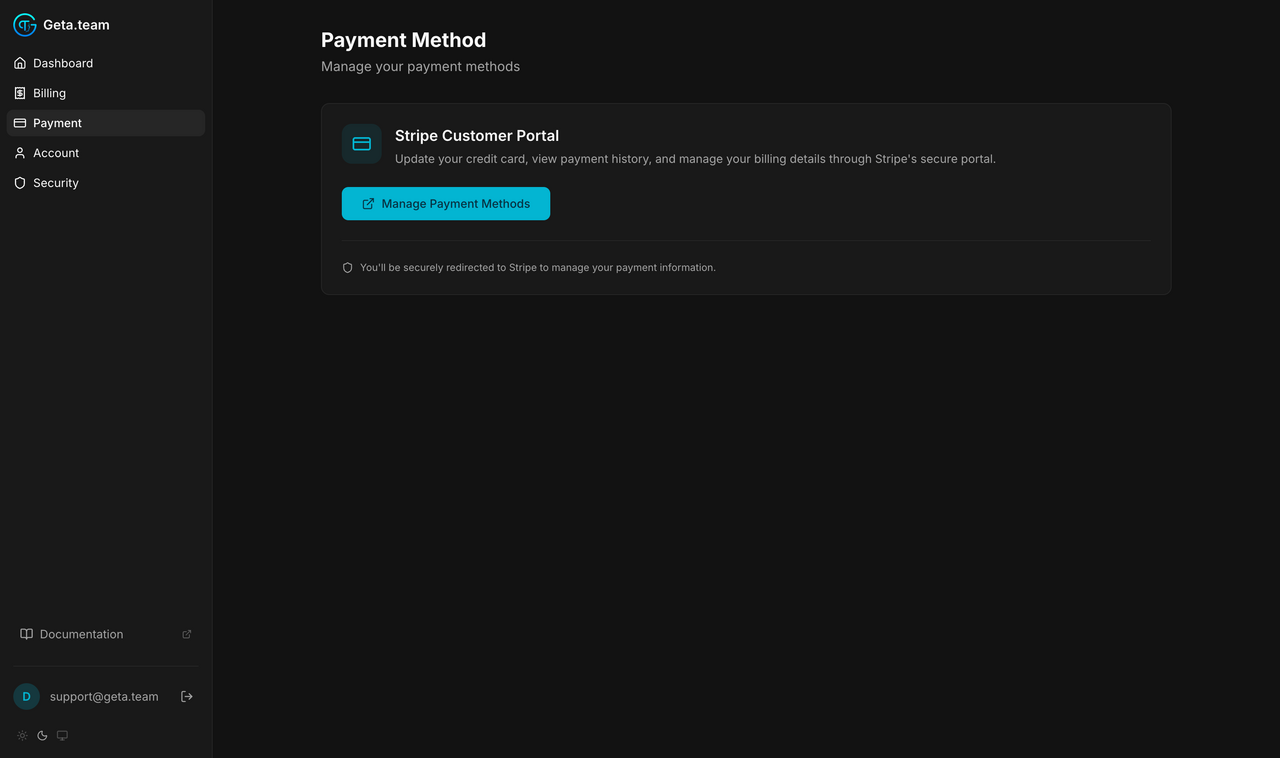
Geta.Team opens Stripe Checkout. Pay there, we never see your card.
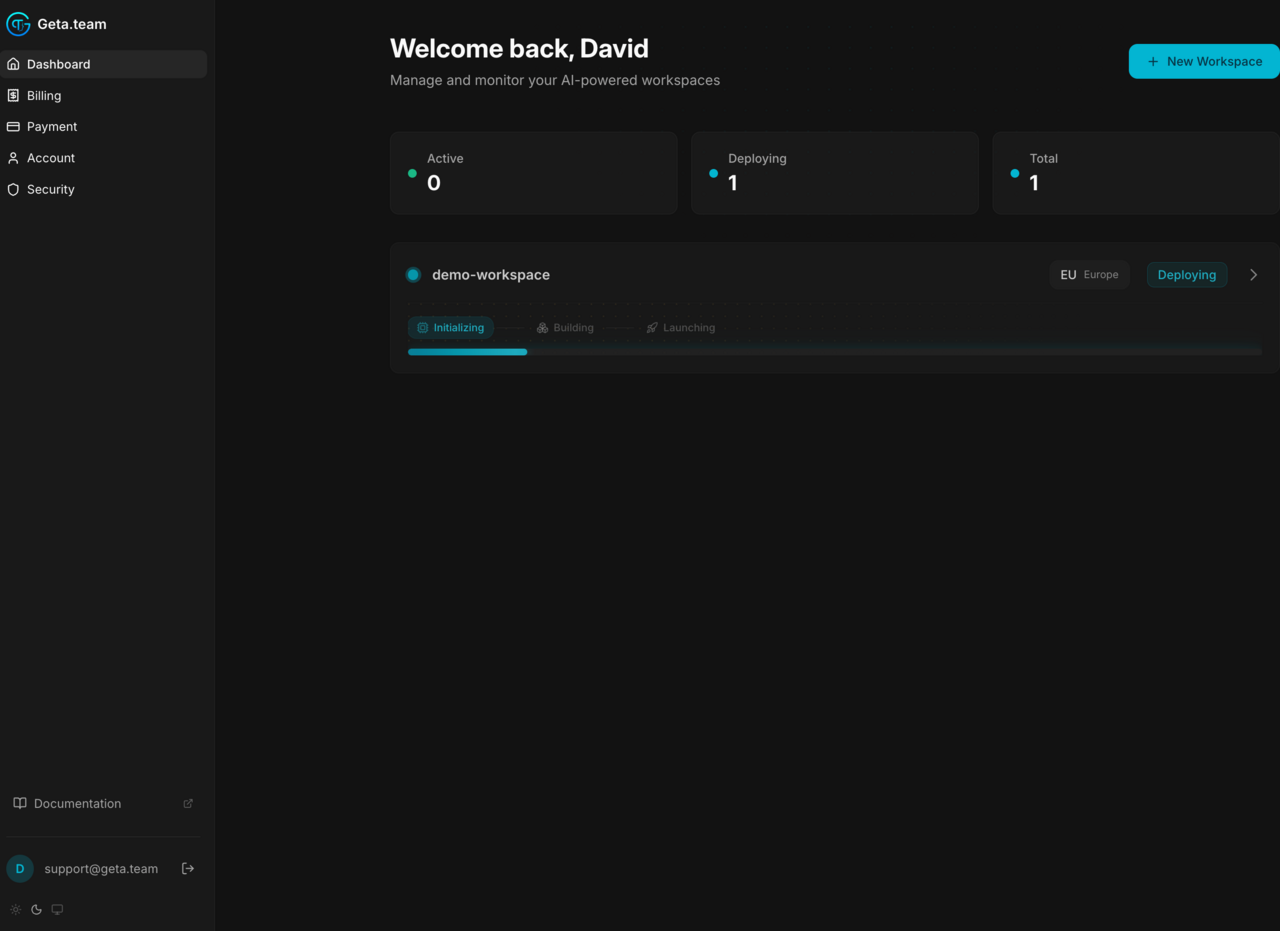
After payment, the workspace switches to provisioning.
4. Wait for provisioning
A dedicated server is being built for you. Typical time: 5 to 10 minutes. The status badge flips from provisioning to running when it's ready, and you receive an email "Your workspace is ready" with a link to its page.
5. Get your credentials
Everything you need sits in the Access your workspace card, at the top of the workspace Overview tab.

- the workspace address;
- the username;
- the password, hidden behind an eye icon. Click it to reveal.
Each field has a copy button on its right.
6. First sign-in
Open the workspace URL. The first time, the workspace asks for your profile - First Name and Last Name, then Let us Start.

Then you land on your empty workspace, ready to hire.

Next: hire your first AI employee.